

🛠️ Purpose & Design Philosophy
This workflow is a high-fidelity environment built for Illustrious. It prioritizes stability and professional texture over generation speed. It follows an "all-in-one" philosophy: configure your prompts, hit queue, and let the workflow handle the multi-stage refinement from start to finish.
Not for Speed: This is a heavy-duty refinement tool. If you want 2-second previews, use a basic workflow.
Personal Use: Built for my specific production needs. It is shared as-is for those who want a "set-and-forget" pipeline for Illustrious. Adjust the settings and models to fit your needs. The defaults on v19+ will be what I used for the sample images.
All-in-One Logic: The workflow handles generation, detailing, and upscaling in one continuous pass.
If you're needing something with more features: Try checking out Silly All-in-one, Multiple Characters With Regional Loras which is on civitai. I have no plans to implement additional features.
⚠️ Disclaimer & Compatibility
Install at Your Own Risk: Custom nodes can break your environment. I am not responsible for troubleshooting your specific installation.
ComfyUI: Built and tested on the non-app version. Desktop app users may face additional hurdles.
The "Your Version" Factor: Your node versions and environment are 99.9% likely to differ from mine.
Nodes 2.0: I do not recommend using Nodes 2.0. It creates unpredictable UI behavior; I will not provide support for issues involving this feature.
🤝 Support & Boundaries
I have not and never will monetize my workflow. CivitAI is the only platform I am maintaining this workflow on. If you find a version of my workflow posted and/or monetized anywhere and use it, then whoever posted it is responsible for providing you any support. This is the main reason why I don't monetize this: I don't want to be or feel obligated to provide support.
No DMs: DMs are disabled due to repeat spam. Please check the Discussions tab below; most questions have already been answered.
Modifications: You are free to hack this workflow apart. However, you are responsible for fixing it if it breaks.
Custom Requests: I do not make private workflows. If you need a custom solution, post a Bounty on CivitAI. There are many talented creators ready to help you for a fee.
Description
Update: I mislabeled the Tile Width and Tile Height nodes in the Pre-USDU groups. Those should be "Width" and "Height". Those nodes connect into the Upscale Image node in the same group and adjust the size of the image based on what you put in the "Upscale from original size" node. I'll fix this on the next update.
Moved the Global Seed node closer to the 1st KSampler (SamplerCustomAdvanced) node.
Added a few more notes throughout the workflow to hopefully help anyone who is not familiar with how some nodes work.
Tweaked some of the settings on the various Image Filter Adjustments nodes and left the majority of them expanded in case people want to adjust them.
Added single ControlNet groups for both USDU groups.
These utilize the ControlNet Union model which can be downloaded via the Manager.
Removed the nodes that added text for the before & after results in the Image Comparer nodes.
These were behaving in a way that would cause the random image results to not populate in the Comparer nodes until the workflow was fully finished.
Kind of a shame, was a nice QoL thing for me.
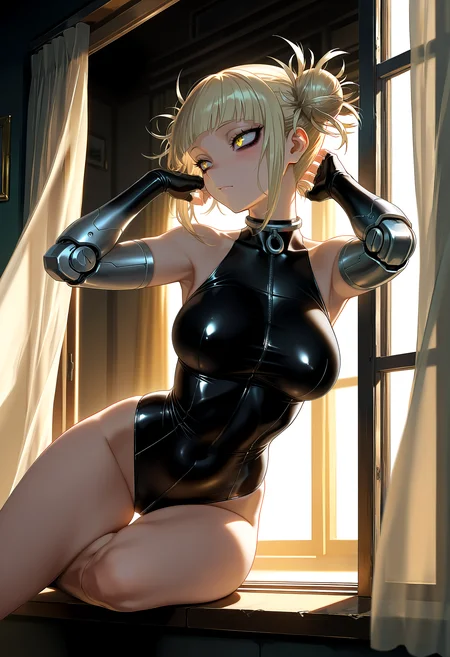
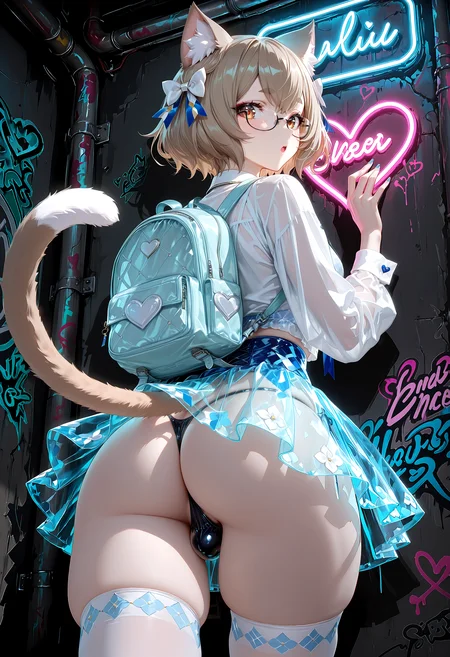
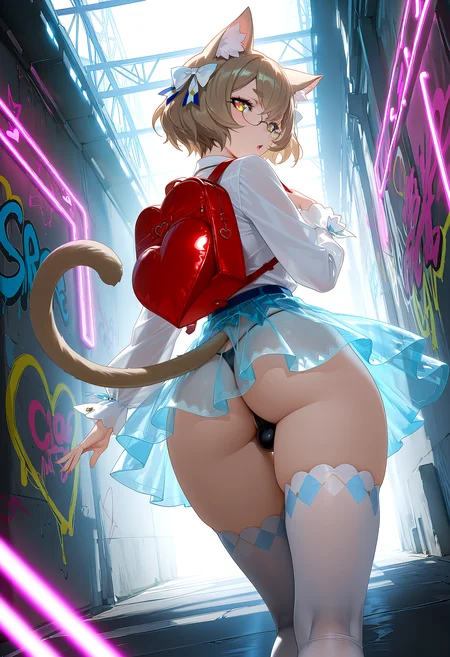
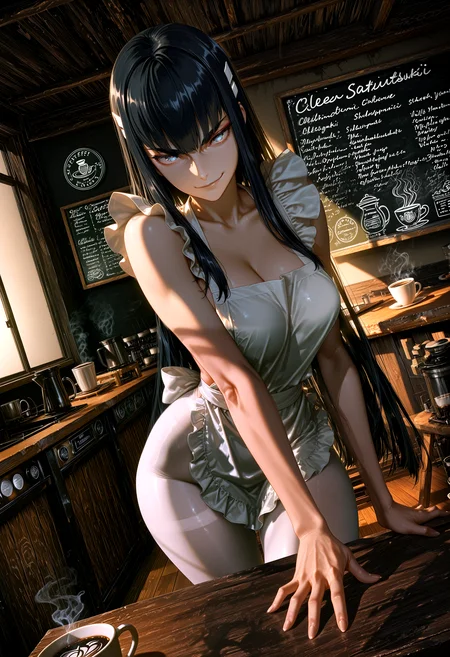
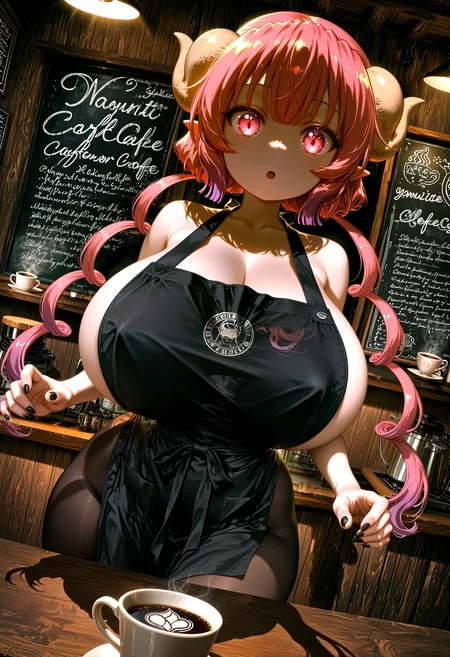
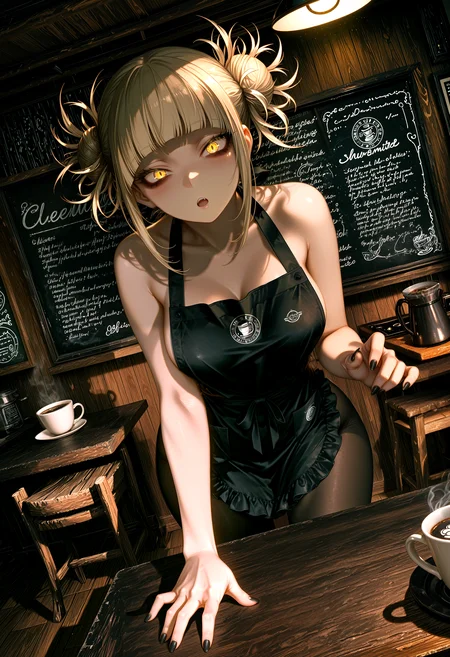
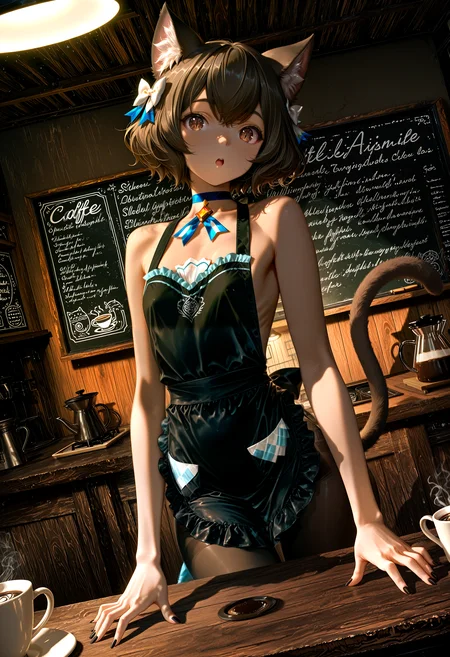
Initial example images were generated using:
Sampler: Euler Ancestral
Scheduler: Beta
Steps: 28
CFG: 6
Upscaled via 2 USDU Groups
Upscale Model: RealESRGAN_x4Plus Anime 6B (link to OpenModelDB)
Steps: 10
Denoise: 0.2
Detailers for Face and Eyes
3 cycles each
Face Detection Model: Anzhc Face seg 1024 v2 y8n.pt (link to huggingface page)
Eye Detection Model: Eyeful | Robust eye detection for Adetailer / ComfyUI - v2 Individual version. (civitai page link)
These will be the settings on the saved workflow file.
FAQ
Comments (25)
Thank you so much for this Gladas, I'm basically a complete beginner to the more "advanced" workflows/settings and this has been so fun to just play around with, understand what each thing does and how it affects the outcome, so thank you so much for all of the updates and explanations on the workflow!
My question is probably a silly one but i can't seem to be able to generate the correct dimensions, i wanna be able to make 3840 x 2160 (4k) at the end of the process but I'm struggling to be able to reach that outcome, sorry if it's a silly question but how would i go about doing the correct settings to be able to get that outcome? I've just switched to v11a for context, Thanks!
Hi. The standard SDXL resolutions don't really convert to 3840x2160 without doing some math if you are wanting to figure out scale settings and such.
Since it's a 16:9 aspect ratio, you're looking at probably starting with the 1344x768 resolution setting on the CR SDXL Aspect Ratio node.
I don't personally go to 4k, so this is just based on numbers.
If you're wanting to go to 4k right off the bat on the first USDU group (probably best practice):
The easiest way will be to disconnect the input connections on the Upscale Image node in the Pre-USDU1 Upscale group. This is effectively bypassing the setting on the Upscale from original size node.
Manually set the width and height to 3840 and 2160.
Expect a longer amount of time needed at this step for the upscale happen. This will also vary depending on your upscale model of choice and your hardware.
Now your image being fed into USDU1 is at 4k.
From there it will do its thing based on the settings you have on the USDU1 node. I would recommend bumping up the mask_blur and tile_padding settings to at least twice as much as they are now, but feel free to experiment. You may or may not need to play with the denoise setting as well.
You will also want to bypass the Downscale Image node unless you plan on doing a 2nd pass in the 2nd USDU group. If it were me, I would do the 2nd pass.
If you are going for a 2nd USDU pass:
Do not bypass the Downscale Image node.
Then repeat what you did above for the 2nd set of USDU groups.
Disconnect the input connections on the Upscale Image node in the Pre-USDU2 Upscale group.
Manually set the width and height to 3840 and 2160.
Now your image being fed into USDU2 is at 4k.
From there it will do its thing based on the settings you have on the USDU2 node just like mentioned above.
After that everything should be the same.
Hope that works for you.
If not, you can try figuring some other options, but I think this is going to be the best method with this specific workflow.
@Gladas You're a legend! thank you so much for the detailed explanation and just taking time out of your day to help! ily <3
Thank you for the amazing workflows, they really sparked my interest in USDU again after dropping them for a few months because of seams and ghosting.
I found the USDU node to generate a lot of seams when used with loras in v11 (odd enough it works nicely with no loras). After spending a night fighting with settings, I found turning off seam fix (seam_fix_mode = None) immediately fixed the issue. I would recommend anyone with seam issues try this first before fighting with the other settings.
I think it's related to the seam fix mask blur and padding settings. I'll update the workflow soon. I actually ran into this earlier and found that to be the fix. In the meantime, if using any of the seams fix modes, just adjust the seam fix mask blur and seams fix tile padding settings to match the normal mask blur and tile padding settings.
This is an amazing workflow thank you for sharing!
Hi, i'm just starting to use ComfyUI, getting use to all this as a user who only ever used SD's WebUI, experimenting a bit with each features like inpaint, ControlNet and tile upscaling.
So far i really enjoy this and am thankful for this upload, it looks like a great place to get started with nodes.
Here's one of the first question i had after trying out the workflow: Is there a way to toggle off the upscaler completely? I figure even if i keep it to 1, it's still going to make the image generation take more time, is that correct?
Oh, just after typing this down, as soon as i looked back at the node, i realized i could simply keep the steps to 0 !
@SuccuboiPakk yeah, you can also bypass that part of the workflow. I have a bunch of toggles on the left side of the workflow to toggle off/on node groups.
Hi, I'm learning how to use the workflow and it's veeeery good, but i wish i could change de CFG of the upscalers, but for some reason it's locked, can you explain how to change it?
Yeah, you can just disconnect the input on the left side of the CFG settings on each node. That will allow you to adjust the number on the node itself. It should look like a green dot usually. Just click and drag that off.
@Gladas Thank you very much!!! <3
How are people getting this working on the desktop version? Or should I just give up and use the portable? It's just stopping at basic scheduler with a red dot next to scheduler with no clear indication even in the console about what's going on. This workflow is SUPER complicated but I'm sure it's amazing if I can get it to work
Hey there. You can try disconnecting the inputs (other than the model) on the basic scheduler nodes and set the scheduler manually and see if that works. I tried using the desktop version once, and without going into details, I hated it. The portable version is my go-to 100%
I did get it to work on the desktop version just now, but I still prefer the portable version.
At first, it didn't want to import the ppm custom nodes until I switched the version I wanted in the Manager.
After that, it froze up and needed to be restarted again. Then, it finally worked.
Hi, I love your workflow and use it all the time! But now I need to do some image-to-image work. Is there a way to feed an existing image through the workflow?
P.S. I'm a total beginner with ComfyUI, so please go easy on me.
The most basic way to do this would be to use a Load Image node, scale the image to an SDXL size, and then convert it to latent and feed it into the 1st KSampler. My v10 workflow had this option if you want to see how I had set it up there.
Hi there, so im entirely new to this stuff but Im getting some unwanted renders.
I am using the desktop version (Didnt know about the portable, looking into it as I'm typing this), but said desktop version always generates a white layer over my renders. I don't understand why really but wondered if you would know.
The version I got from Openart.ai works perfectly on the other hand so I'm very lost.
Hey, I'm not sure tbh since I am not sure which version of the workflow you are using, but kind of sounds like a VAE issue to me. I think on most, if not all, versions of my workflow have a toggle for VAE. Try toggling that to Load VAE and make sure to have a VAE installed on your models/VAE folder.
I seem to be having an issue where if I drag a png onto ComfyUI to load the workflow, it keeps the seed the same, regardless of if I set the mode to randomize.
if you're on v11 or higher, make sure the global seed node is not set to fixed also
@Gladas That was it! Thanks for the assist.