

HUNYUAN | AllInOne
no need to buzz me. Feedbacks are much more appreciated. | last update: 06/03/2025
⬇️OFFICIAL Image To Video V2 Model is out!⬇️ COMFYUI UPDATE IS REQUIRED !
Get files here:
link 1 paste in: \models\clip_vision
link 2 or Link 3 paste in: \models\diffusion_models (pick the one that works best for you)
⚠️ I2V model got an update on 07/03/2025 ⚠️
This workflows have evolved over time through various tests and refinements,
thanks also to the huge contributions of this community.
Requirements, Special thanks and credits above.
Before commenting, please keep in mind:
The Advanced and Ultra workflows are intended for more experienced ComfyUI users.
If you choose to install unfamiliar nodes, you take full responsibility.I do this workflows for fun, randomly in my free time.
Most issues you might encounter are probably already been widely discussed and solved on Discord, Reddit, GitHub, and addressed in the description corresponding to the workflow you're using, so please..Read carefully..
and consider do some searches before comment.I started this alone, but now there's a small group of people who are contributing with their passion, experiments and cool findings. Credits below.
Thanks to their contributions this small project continues to grow and improve
for everyone's benefit.Fast Lora may works best when combined with other Loras, allowing you to reduce the number of steps.
- Wave Speed can significantly reduce inference time but may introduce artifacts.
- Achieving good results requires testing different settings. Default configurations may not always work, especially when using LORAs, so experiment to find settings that fits best.THERE'S NOT UNIVERSAL SETTINGS THAT WORKS FOR EVERY CASES.
- You can also try to switch to different sampler/scheduler and see wich works best for you case, try UniPC simple, LCM simple , DDPM, DDMPP_2M beta, Euler normal/simple/beta, or the new "Gradient_estimation"
(Samplers/schedulers need to be set for each stage and mode; they are not settings found in the console)
Legend to help you choose the right workflow:
✔️ Green check = UP TO DATE version for its category.
Include latest settings, tricks, updated nodes and samplers, working on latest ComfyUI.
🟩🟧🟪 Colors = Basic / Advanced / Ultra
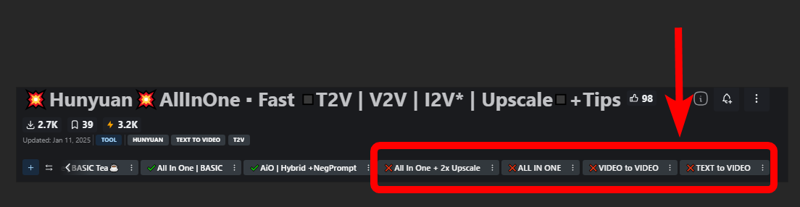
❌ = Based on deprecated nodes, you'll have to fix it yourself if you really want to use
Quick Tips:
Low Vram? Try this:
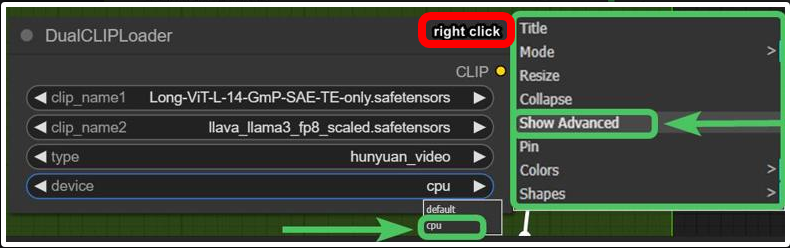 and/or try use GGUF models avaible here.
Rtx4000? use this: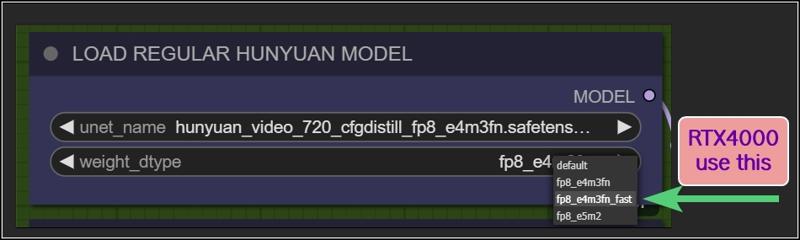
Want more tips?
Check my article: https://civarchive.com/articles/9584
All workflows available on this page are designed to prioritize efficiency, delivering high-quality results as quickly as possible.
However, users can easily customize settings through intuitive, fast-access controls.
For those seeking ultra-high-quality videos and the best output this model can achieve, adjustments may be necessary, like Increasing steps, modifying resolutions, reducing TeaCache / WaveSpeed influences, or disabling Fast LoRA entirely to enhance results.
Personally, I aim for an optimal balance between quality and speed. All example videos I share follow this approach, utilizing the default settings provided in these workflows. While I may make minor adjustments to aspect ratio, resolution, or step count depending on the scene, these settings generally offer the best all-around performance.
WORKFLOWS DESCRIPTION:
🟩"I2V OFFICIAL"
require:
llava_llama3_vision: ➡️Link paste in: \models\clip_vision
Model: ➡️Link or ➡️Link (pick the one that works best for you)
paste in: \models\diffusion_modelshttps://github.com/pollockjj/ComfyUI-MultiGPU
The following node is for SAGE ATTENTION, if you don't have it installed just bypass it:
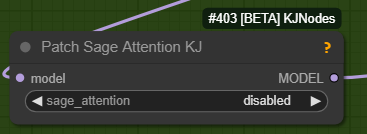
🟩"BASIC All In One"
use native comfy nodes, it has 3 method to operate:
T2V
I2V (sort of, an image is multiplied *x frames and sent to latent, with a denoising level balanced to preserve the structure, composition, and colors of the original image. I find this approach highly useful as it saves both inference time and allows for better guidance toward the desired result). Obviously this comes at the expense of general motion, as lowering the denoise level too much causes the final result to become static and have minimal movement. The denoise threshold is up to you to decide based on your needs.
There are other methods to achieve a more accurate image-to-video process, but they are slow. I didn’t even included a negative prompt in the workflow because it doubles the waiting times.
V2V same concept as I2V above
require:
https://github.com/chengzeyi/Comfy-WaveSpeed
https://github.com/pollockjj/ComfyUI-MultiGPU
🟧 "ADVANCED All In One TEA ☕"
an improved version of the BASIC All In One TEA ☕, with additional methods to upscale faster, plus a lightweight captioning system for I2V and V2V, that consume only additional 100mb vram.
Upscaling can be done in three ways:
Upscaling using the model. Best Quality. Slower (Refine is optional)
Upscale Classic + Refine. It uses a special video upscaling model that I selected from a crazy amount of multiple video upscaling models and tests, it is one of the fastest and allows for results with good contrast and well-defined lines. While it’s certainly not the optimal choice when used alone but when combined with the REFINE step, it produces well-defined videos. This option is a middle ground in terms of timing between the first and third method.
Latent upscale + Refine. This is my favorite. fastest. decent.
This method is nothing more than the same as the first, wich is basically V2V, but at slightly lower steps and denoise.
Three different methods, more choices based on preferences.
Requirements:
-ClipVitLargePatch14
download model.safetensors
rename it as clip-vit-large-patch14_OPENAI.safetensors"
paste it in \models\clip
paste it in \models\ESRGAN\
-LongCLIP-SAE-ViT-L-14
-https://github.com/pollockjj/ComfyUI-MultiGPU
-https://github.com/chengzeyi/Comfy-WaveSpeed
Update Changelogs:
|1.1|
Faster upscaling
Better settings
|1.2|
removed redundancies, better logic
some error fixed
added extra box for the ability to load a video and directly upscale it
|1.3|
New prompting system.
Now you can copy and paste any prompt you find online and this will automatically modify the words you don't like and/or add additional random words.
Fixed some latent auto switches bugs (this gave me serious headhaces)
Fixed seed issue, now locking seed will lock sampling
Some Ui cleaning
|1.4|
Batch Video Processing – Huge Time Saver!
You can now generate videos at the bare minimum quality and later queue them all for upscaling, refining, or interpolating in a single step.
Just point it to the folder where the videos are saved, and the process will be done automatically.
Added Seed Picker for Each Stage (Upscale/Refine)
You can now, for example, lock the seed during the initial generation, then randomize the seed for the upscale or refine stage.
More Room for Video Previews
No more overlapping nodes when generating tall videos (don't exagerate with ratio obviously)
Expanded Space for Sampler Previews
Enable preview methods in the manager to watch the generation progress in real time.
This allows you to interrupt the process if you don't like where it's going.
(I usually keep previews off, as enabling them takes slightly longer, but they can be helpful in some cases.)
Improved UI
Cleaned up some connections (noodles), removed redundancies, and enhanced overall efficiency.
All essential nodes are highlighted in blue and emphasized right below each corresponding video node, while everything else (backend) like switches, logic, mathematics, and things you shouldn't touch have been moved further down. You can now change settings or replace nodes with those you prefer way more easily.
Notifications
All nodes related to the browser notifications sent when each step is completed, which some people find annoying, have been moved to the very bottom and highlighted in gray. So, if they bother you, you can quickly find them, select them, and delete them
|1.5|
general improvements, some bugs fixes
NB:
This two errors in console are completly fine. Just don't mind at those.
WARNING: DreamBigImageSwitch.IS_CHANGED() got an unexpected keyword argument 'select'
WARNING: SystemNotification.IS_CHANGED() missing 1 required positional argument: 'self'
🟪 "AIO | ULTRA "
Embrace This Beast of Mass Video Production!
This version is for the truly brave professionals and unlocks a lot of possibilities.
Plus, it includes settings for higher quality, sharper videos, and even faster speed, all while being nearly glitch-free.
All older workflows have also been updated to minimize glitches, as explained in my previous article.
From Concept to Creation in Record Time!
We are achieving world-record speed here, but at the cost of some complexity. These workflows are becoming increasingly intimidating despite efforts to keep them clean and hide all automations in the back-end as much as possible.
That's why I call this workflow ULTRA: a powerhouse for tenacious Hunyuan users who want to achieve the best results in the shortest time possible, with all tools at their fingertips
Key Features and Improvements:
Handy Console: Includes buttons to activate stages with no need to connect cables or navigate elsewhere. Everything is centralized in one place (Control Room), and functions can be accessed with ease.
T2V, I2V*,V2V, T2I, I2I Support: Seamless transitions between different workflows.
*I2V: an image is multiplied into *x frames and sent to latent. Official I2V model is not out yet. There's a temprorary trick to do I2V here wich require Kijai's nodes.
Wildcards + Custom Prompting Options: Switch between Classic prompting with wildcards or add random words in a dedicated box, with automatic customizable word swapping or censoring.
Video Loading: Load videos directly into upscalers/refiners and skip the initial inference stage.
Batch Video Processing: Upscale or Refine multiple videos in sequence by loading them from a custom folder.
Interpolation: Smooth frame transitions for enhanced video quality.
Random Character LoRA Picker: Includes 9 LoRA nodes in addition to fixed LoRA loaders.
Upscaling Options: Supports upscaling, double upscaling, and downscaling processes.
Notifications: Receive notifications for each completed stage, organized in a separate section for easy removal if necessary.
Lightweight Captioning: Enables captioning for I2V and V2V with minimal additional VRAM usage (only 100MB).
Virtual Vram support.
Use the GGUF model with Virtual VRAM to create longer videos or increase resolution.
Hunyuan/Skyreel (T2V) quick merges slider
Switch from Regular Model to Virtual Vram / GGUF with a slider
Latent preview to cut down upscaling process.
A dedicated LoRA line exclusively for upscalers, toggled via a dedicated button.
RF edit loom
Upscale using Multiplier or "set to longest size" target
a button to toggle Wave Speed and FastLoRA as needed for upscaling only.
Ui improvements based on users feedbacks
- Sequential Upscale Under 1x / Double Upscaling
You can now downscale using the upscale process and then re-upscale with the refiner, or customize upscaler multipliers to upscale 2 times.
New Functionality:
The upscale value range now includes values as low as 0.5.
Two sliders are available: one for the initial upscale and another for the refiner (essentially another sampler, always V2V).
Applications:
Upscale, Refine or combine the twoUpscale fast (latent resize + sampler) or accurate (resize + sampler)
Refine (works the same as upscale, can be used alone or as an auxiliary upscaler)
Double upscaling: Start small and upscale significantly in the final stage.
Downscale and re-upscale: Deconstruct at lower resolution and reconstruct at higher quality.
Combos: Upscale & Refine / Downscale & Upscale
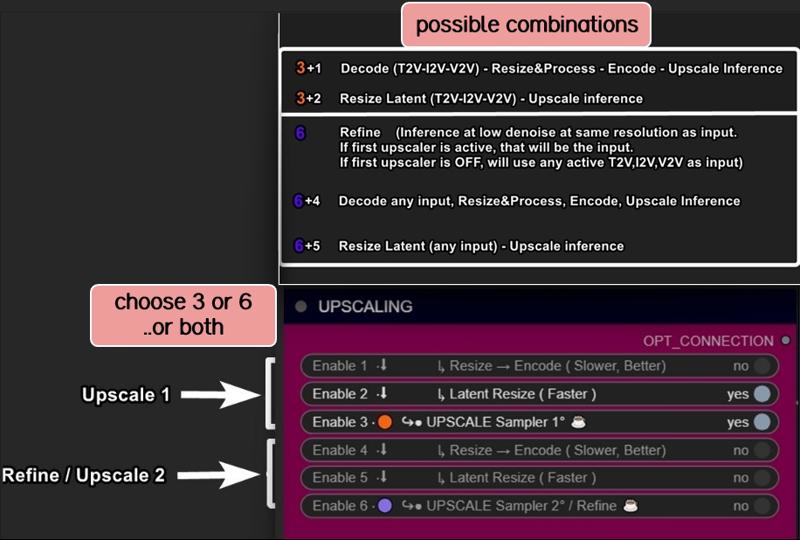
- Skip Decoders/Encoders Option
Save significant time by skipping raw decoding for each desired stage and going directly to the final result.
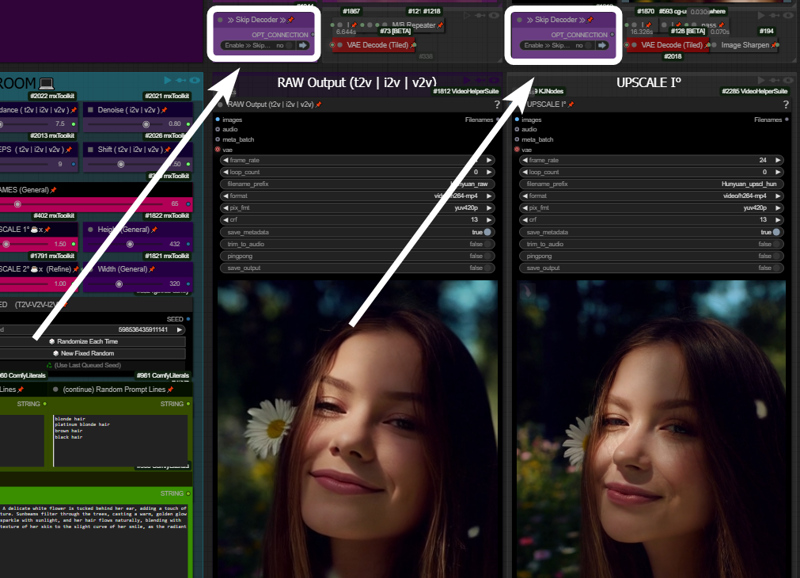
How It Works: If your prompt is likely to produce a good output and the preview method ("latent2RGB") is active in the manager, you can monitor the process in real-time. Skip encoding/decoding by working exclusively in the latent space, generating and sending latent data directly to the upscaler until the process completes.
Example:
A typical medium/high-quality generation might involve:Resolution: ~ 432x320
Frames: 65
One Upscale: 1.5x (to 640x480)
Total Time: 162 seconds
In this example case, by activating the preview in the manager and skipping the first decoder (the preview before upscaling), you can save ~30 seconds. The process now takes 133 seconds instead of 162.
Bypassing additional decoders (e.g., upscale further or refinement) can save even more time.
- Image Generation (T2I and I2I)
Explore HUN latent space with this image generation capabilities.
When the number of frames is set to 1, the image node activates automatically, allowing the image to be saved as a PNG.
Use the settings shown here for the best results: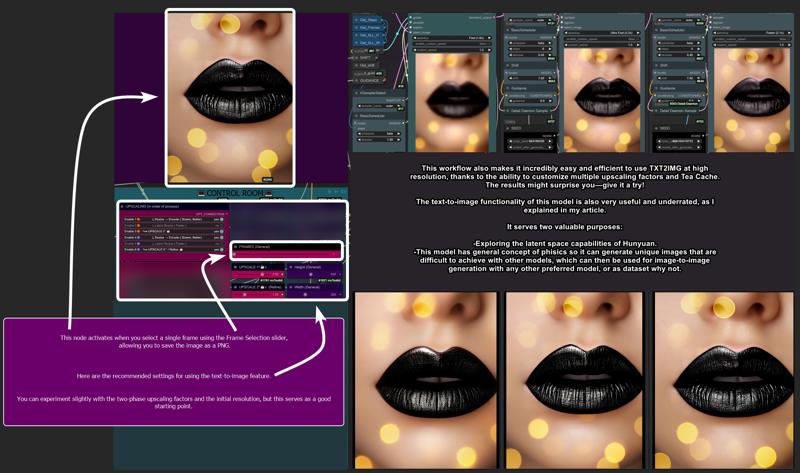
T2I Example Gallery: Hunyuan Showcase
- Structural Changes / Additional Features
Motion Guider for I2V
This feature enhances motion for image-to-video workflows, lowering chances to get a static video as result.
9 Random Character Loras Loader: Previously limited to 5, now expanded to 9.
Random Character Lora Lock On/Off:
By default, each seed is set to corresponds to a random Lora
(e.g., seed n° 667 = Lora n° 7).Now, you can unlock this "character Lora lock on seed" and regenerate the same video with a different random Lora while maintaining the main seed.
Clarifications:
Let’s call things by their real names:"Refine" and "Upscale" are both samplers here. Each optimized for specific stages:
Upscale: Higher steps/denoise, fast results, balanced quality.
Refine: Lower steps/denoise, focused on fixing issues and enhancing details.
Refine can work alone, without upscaling, to address small issues or improve fine details.
UI Simplification:
The "classic upscale" is now replaced by a faster and better-performing resize + sharpness operation and hidden in back-end to save space.Frame Limit Issue (101+ Frames):
Generating more than 101 frames with latent upscale can cause problems. To address this, I added an option to upscale videos before switching to latent processing.
- Bug Fixes
Latent Upscale Change:
Latent upscaling now uses bicubic interpolation instead of nearest-exact, which performs better based on testing.
"Cliption" Bug Fixed
201-Frame Fix:
Generating 201-frame perfect loops caused artifacts with latent upscale. Switching to "resize" via the pink console buttons now resolves this issue.
- Performance and other infos:
Once you master it, you won’t want to go back. This workflow is designed to meet every need and handle every case, minimizing the need to move around the board too much. Everything is controlled from a central "Control Room."
Traditionally, managing these functions would require connecting/disconnecting cables or loading various workflows. Here, however, everything is automated and executed with just a few button presses.
Default settings (e.g., denoise, steps, resolution) are optimized for simplicity, but advanced users can easily adjust them to suit their needs.
-Limitations:
No Audio Integration:
While I have an audio-capable workflow, it doesn’t make sense here. Audio should be processed separately for professional results.No Post-Production Effects:
Effects like color correction, filmic grain, and other post-production enhancements are left to dedicated editing software or workflows. This workflow focuses on delivering a pure video product.Interpolation Considerations:
Interpolation is included here. I set up the fastest i could find around, not necessary the best one. For best results, I typically use Topaz for both extra upscaling and interpolation after processing but is up to the user to choose whatever favourite interpolation method or final upscaling if needed.
Requirements:
ULTRA 1.2:
-Tea cache
ULTRA 1.3:
-UPDATE TO LATEST COMFY IS NEEDED!
-Wave Speed
-ClipVitLargePatch14
ULTRA 1.4 / 1.5:
-UPDATE TO LATEST COMFY IS NEEDED!
https://github.com/pollockjj/ComfyUI-MultiGPU
https://github.com/chengzeyi/Comfy-WaveSpeed
https://github.com/city96/ComfyUI-GGUF
https://github.com/logtd/ComfyUI-HunyuanLoom
https://github.com/kijai/ComfyUI-VideoNoiseWarp
NB:
The following warning in console is completly fine. Just don't mind at it:
WARNING: DreamBigImageSwitch.IS_CHANGED() got an unexpected keyword argument 'select'
WARNING: SystemNotification.IS_CHANGED() missing 1 required positional argument: 'self'
Update Changelogs:
|1.1|
Better color scheme to easily understand how upscaling stages works
Check images to understand
|1.2|
Wildcards.
You can now switch from Classic Prompting system (with wildcards allowed)
to the fancy one previously avaible
|1.3|
An extra wavespeed boost kicks in for upscalers.
Changed samplers to native Comfy—no more TTP, no more interrup error messg
Tea cache is now a separate node.
Fixed a notification timing error and text again.
Replaced a node that was causing errors for some users: "if any" now swaps with "eden_comfy_pipelines."
Added SPICE, an extra-fast LoRA toggle that activates only in upscalers to speed up inference at lower steps and reduce noise.
Added Block Cache and Sage to the setup. Users who have them working can enable them.
Changed the default sampler from Euler Beta to the new "gradient_estimation" sampler introduced in the latest Comfy update.
Added a video info box for each stage (size, duration).
Removed "random lines."
Adjusted default values for general use.
Upscale 1 can now function as a refiner as well.
When pressing "Latent Resize" or "Resize," it will automatically activate the correct sampler.
A single-frame image is now displayed in other stages as well (when active).
Thanks to all users that contributed on discord for this workflow improvements!
|1.4|
Virtual Vram support
Hunyuan/Skyreel quick merges slider
Toggle to switch from Regular Model to Virtual Vram / GGUF
Longer vids / Higher Res / extreme upscaling now possible
Default res changed to 480x320 wich looks like a balanced middle way for lowres quick vids and most users should be ok with that.
Latent preview for skip preview mode
Switch toggle to enable/disable Exclusive LoRA for upscalers
RF edit loom
V2V loading time improved
Upscale to longest size target
Fixed slider upscale mismatch
info node moved
clean up and fixes
better settings for general use
upscale one can now use "resize to longers size" optional slider
added extra wave speed toggle for upscalers
added exclusive loras line for upscalers
general fixes
Ui improvement based on users feedbacks
fixed fast lora string issue on bypass in upscalers
more cleaning
changed exlusive loras for upscalers again, main fast lora is NOT going to pass in that line, since it has already a separate toggle (upscale with extra fast lora) previously called SPICE FOR UPSCALING.
fixed output node size for videos
moved resize by "longest size" toggle in extra menu
added extra wave speed toggle
control room is finished.. for now. I dont want to stress Aidoctor further. He already did a great job
lower fast lora default value now to 0.4
fixed VIDEO BATCH LOADING
|1.5|
general improvements, Ui improvements, some bugs fixes
leap fusion support
Go With The Flow support
Bonus TIPS:
Here an article with all tips and trick i'm writing as i test this model:
https://civarchive.com/articles/9584
if you struggle to use my workflows for any reasons at least you can relate to the article above. You will get a lot of precious quality of life tips to build and improving your hunyuan experience.
All the workflows labeled with an ❌are OLD and highly experimental, those rely on kijai nodes that were released at very early stage of development.
If you want to explore those you need to fix them by yourself, wich should be pretty easy.
CREDITS
Everything I do, I do in my free time for personal enjoyment.
But if you want to contribute,
there are people who deserve WAY more support than I do,
like Kijai.
I’ll leave his link,
if you’re feeling generous go support him.
Thanks!
Last but not least:
Thank this community, especially those who given me advices and experimented with my workflows, helping improve them for everyone.
Special thanks to:
https://civarchive.com/user/galaxytimemachine
for its peculiar and precise method of operation in finding the best settings and for all the tests conducted.
https://civarchive.com/user/TheAIDoctor
for his brilliance and for dedicating his time to create and modify special nodes for this workflow madness! such an incredible person.
and
https://github.com/pollockjj/ComfyUI-MultiGPU
Also special thanks to:
Tr1dae
for creating HunyClip, a handy tool for quick video trimming. If you work with heavy editing software like DaVinci Resolve or Premiere, you'll find this tool incredibly useful for fast operations without the need to open resource-intensive programs.
Check it out here: [link]
Have fun
Description
FAQ
Comments (85)
My results so far with any of your workflow, 0 video generated, several crashes, one strange thing messing my computer (maybe it was just a coïncidence and not related but still...) it seems I'm always one or two something needing to be installed behind on any of your stuff, but I must say, they look amazing, and certainly IF I could run them and actually produce something out of it other than an error report and missing stuff :) I would love it !
sorry to hear that. maybe start with basic workflows
@LatentDream I don't think your basic workflow offer anything more than my already basic crusty ones ;) I'm just not very good when it come to installing a bunch of stuff, it's a miracle I managed to run diffusion-pipe training on windows already, but your workflow are just a step too far for my limited understanding.
@NoArtifact I'm sure you'll get the hang of mastering ComfyUI, just like I did.
What you see here is simply a product designed to meet the needs of those who have been using Hunyuan since day one..
I understand the frustration. Enjoy your crusty workflow!
The important thing is that it works for you and that you have fun.
Good luck!😎
@LatentDream thx
@NoArtifact First you'll have to install the dependencies @LatentDream lists in the description for each workflow.
Then you need to open comfy manager (install comfy manager if you don't have it yet). Check for missing things using manager (there's a button in comfy manager to do this). Download everything that's missing for that workflow (you need to do it for each workflow, it only checks for the one on the screen at the moment). Go with the version number it wants, or the latest build if it's not listed. Then once those are installed, reboot comfy. It'll take longer to install this stuff starting up next time, just let it do its thing.
Once all of that is done, you need to ATTEMPT to run the workflow. It will almost certainly fail, but will either give you a message (click for more info and carefully note the folder name and the model name that is missing) or the missing model's node will be outlined in red in the UI.
Go to the internet and grab the model that's missing by searching for the EXACT name of the model and get it from a reputable site. Plop it into the folder it's missing from (you may need to make that folder yourself). Then open comfy (or reboot if open) and ATTEMPT to run it again. You will probably need to do this a number of times, but it should work in the end and it's worth it.
@null I'll try at some point, but my last attempt was so disastrous (ended up messing my computer for a whole day, no idea what went wrong, or if it was even related to be honest, but that's what happened) thx for the help.
On the New Version 1.4
ModelMergeSimple.merge() missing 1 required positional argument: 'model1'
RATIO% is having a Red Circle
I think i know why because i had Hunyuan T2V Model and GGUF + Virtual RAM on at the same time
shoudnt do that.
anyway, just bypass what you dont use and you should be ok
@LatentDream Yeah i did but the biggest problem for me is this,
CLIPTextEncode.encode() missing 1 required positional argument: 'clip'
When i follow the execution it lands on Main Prompt Words replace.
Nvm,it worked after i didnt deleted the sageattention but bypass it xD
@Santaonholidays
the workflow has been tested and retested by multiple people for several days before publication.
I'm not the only one running tests.
I can assure you that it works, but I understand the situation.
Comfy, dependencies, countless nodes to install...
If you're really struggling, switch to the basic workflow, which is simpler.
Or see if you can adjust it to make it work for you.
Unfortunately, there's not much I can do. Sorry.
@LatentDream I'm just having a flu (i think) lol
I can the workflow running but exporting as api just doesn't work, nodes are not connected, if someone has the api t2v version i'd really appreciate it.
Do you really do "export (api)" or only "export"?
@FoxTheFoxToTheFox export api , can run it fine using the ui though.
How much faster is 1.4 ultra than 1.3 ultra?
Basic and Advanced workflows work fine, but Ultra workflow crashes Comfy as soon as Hunyuan model is requested.
Tried everything, including updating dependencies, etc etc
Great work! Since you are creating a UI of its own, I wonder if you were to setup a template in flow, it might just make this super clean system.
https://github.com/diStyApps/ComfyUI-disty-Flow
1.4 Issues
TextPlus - Had to remove all the titles
UnetLoaderGGUFDisTorchMultiGPU - Disable
Easy Setnode - Wired them directly
Runnig on Novita
nvidia/cuda:11.8.0-runtime-ubuntu22.04 python=3.12 CUDA Version: 12.4
ComfyUI v0.3.15
Manager: V3.25.1
Note:
All nodes expect UnetLoaderGGUFDisTorchMultiGPU seems to work fine on my windows home setup with a 4070 Super
First of all, I want to emphasize and clarify that those exclusive custom nodes you see in this workflow were designed by AIDoctor, who patiently listened to my feedbacks day by day.
I will never stop thanking him because I have dreamed of these nodes since Comfy existed.
Finally, it’s now possible to create a sort of cleaner UI within Comfy, thanks to these nodes.
them, some MAC use reported the same issue about text you had to remove.
also I already checked FLOW since i really wanted to have a clean UI, thanks for pointing at that, can't remember now why i wasnt able to do alla this using flow. Will give it another try
Thank you so much for another great update. There is one nuance, when using virtual memory and the gguf model after a while, the memory overflows and the render slows down very much. It would be possible to add a cache cleanup or something like that.
No module named 'triton' ... 😭
How to fix??
short google search for Windows Triton in case you run it on Windows.
Or long instruction which I just found
How to Install Triton on Windows | kombitz
You can just bypass the Sage Attention node.
Hello guys im using basic all in one and im curious about somes stuff. im big newbie. First question is what decide about how movement are fast or not. Sometimes is in slowmotion sometimes not. How can i affect this ?
Guys im willing to pay to get the t2v working via comfy api.
in the comfyui folder, there is a script_examples folder with API Python scripts. This one basic_api_example.py has already an example. I got it working easily with some Python knowledge.
@FoxTheFoxToTheFox I have no issues running other workflows via api, but this workflow t2v gives a lot of issues, and its too custom and big for me to debug
@trickybarrel72984 hello, i uploaded a T2V only workflow, did you tryed that? is in the same zip now.
... i know i'm sorry, is relying on so many nodes. this is just crazy.
I'm sharing this but i also know many users will probably struggle to make it work because of this.
So sad.. is such a handy workflow to operate, everything is there in console, no need to move around.
Can't do anything about it, it's just ...comfyUI.
@LatentDream yeah ik its comfy. I tried to remove all other nodes and leave just t2v with 1 upscale. No problem running the workflow via the ui, but some of the connections and values are lost when exporting in api version. Once I even got workflow too big error XDD
Too bad cause I loved the workflow but I cannot use it in my saas without api, I guess i will have to find another.
The basic workflow is working but the advanced and ultra comes up with this error.
No module named 'sageattention'.
There are no red nodes, I really have no idea what it could be. Any ideas?
setup on the left.
bypass sage node
Maybe also setting sage_attention to disable in the sage node will do the trick, but unsure. Disabling as LatentDream mentionned would be your best option, or you could also install sageattention (advanced setup).
Working with 1.4 Ultra, everything seems to be ok for me except the auto caption. There's no input into the CLIPtion loader. Where should that input be coming from?
You have to turn off the bypass to the bottom node in the setup group. It's labeled Load CLIP Vision (for CLIPtion)
TitlePlus
cannot open resource
Workflow too large. Please manually upload the workflow from local file system.
anyone know how to resolve above error?
Delete all Title Plus nodes, use the nodes map. They are just visual.
@Tomber82 this
Hi LatentDream, what workflow do you recommend with an RTX with only 10GB?
Thanks in advance
See you soon
start with basic. add multi gpu node and use gguf
@LatentDream Thanks a lot.
How do I choose 201 frames for a looping effect? It doesn't let me type it in manually.
Packages needed for HUN ultra:
ComfyUI-HunyuanVideoWrapper
ComfyUI_tinyterraNodes
ComfyUI-GGUF
rgthree's ComfyUI Nodes
ComfyUI Easy Use
Use Everywhere (UE Nodes)
KJNodes for ComfyUI
Dream Project Animation Nodes
ComfyUI Frame Interpolation
ComfyUI-HunyuanVideoMultiLora
Save Image with Generation Metadata
ComfyUI Essentials
pythongosssss/ComfyUI-Custom-Scripts
ComfyUI-VideoHelperSuite
JPS Custom Nodes for ComfyUI
ComfyUI SKBundle
ComfyUI-TeaCache
ComfyUI-mxToolkit
ComfyUI-TeaCacheHunyuanVideo
ComfyUI-ergouzi-Nodes
Comfyroll Studio
ComfyMath
ComfyUI-Detail-Daemon
The AI Doctors Clinical Tools
ComfyLiterals
Comfy-WaveSpeed - manual install from https://github.com/chengzeyi/Comfy-WaveSpeed, download and put in custom_nodes as Comfy-WaveSpeed
comfy manager will autdownload everything, except 3 or 4 nodes wich are written inthe description.
thanks anyway
Amazing wf, thanks! One question, I raised the frames to 72 to get a 3 sec vid, the vid was still 2 sec. Is there something else I need to change to get a longer video? Resolved.
looks sli,e something is not workifn on your side. wich workflow are you using?
I'm using the Basic 16gb, HUN_BASIC_1.1.json. Works great, I'm just trying to get as long a vid as possible. Thanks!
I bumped it up another sec and it seemed to work fine. Player issue maybe. Thanks again!
Can anyone tell me how to install these missing modules can't seem to find what there apart of
HYFlowEditSampler
HYReverseModelSamplingFred
in description
@LatentDream will try it out thanks
now im getting Cannot execute because a node is missing the class_type property.: Node ID '#2441' its the easy set node, using the runpod template
Sorry to bother you, I have the same question as it,Could you tell me how to find the modules about HYFlowEditSampler and HYReverseModelSamplingFred.
Manged to fix all the issues i mentioned before
Runpod Template thats working very smooth on the guide i setup
💥3.0-CUDA2.5
https://civitai.com/articles/11303/guide-to-runpod-template-by-latentdreams-hunyuan-allinon
1. I stupidly missed out some of the custom nodes that needed to be installed which fixed many of the issues
2. ISSUE with TitlePlus was fixed with some installing Fonts
- Node Type: TitlePlus - Exception Type: OSError - Exception Message: cannot open resource
RUN apt-get update && apt-get install -y \ ttf-mscorefonts-installer \ fonts-liberation \ fonts-dejavu \ fontconfig \ && rm -rf /var/lib/apt/lists/*
If turn on GGUF
"ApplyFBCacheOnModel
'NoneType' object has no attribute 'clone'"
How to fix this error??? plz help me..
same for me.
Make sure you enable the GGUF node and select the correct model in it.
Which nodes do “UnetLoaderGGUFDisTorchMultiGPU” and “QUEUE(JOV)” belong to? I only see the Jovimetrix node missing on the manager and it keeps failing to install, do they have a replacement? I'm really tired of installing it.
Read through the description for node packs that are not in the manager.
@galaxytimemachine I'm sorry that my English is not very good and it was very difficult to watch your workflow presentation. I tried to reinstall all the dependencies of the Jovimetrix node, which solved the problem of the missing Jovimetrix, and this time the node “QUEUE(JOV)” was installed, but I still can't find the node “UnetLoaderGGUFDisTorchMultiGPU”. UnetLoaderGGUFDisTorchMultiGPU” node, can you tell me from which node suite this node comes?
@0002kgHg This is in the manager. If it's not finding it, then you need to update manager.
Have you selected the Hunyuan model according to your standard/GGUF setting in the control room?
Hello, Thanks for all of this, truly, I just have one question: why if I don't change the seed or the prompt and I regenerate, all the steps start again? Like for example I forgot to enable interpolation, If I enable it and click generate, it shouldn't start from the Raw again, am I missing something? I'm using v1.4 t2v in a 4090
Hi, we noticed this in testing and didn't manage to resolve it. I think it's a result of how ComfyUI treats the order of execution.
@galaxytimemachine thanks anyway for trying, it just a little more of waiting thats all, on ver1.3 it didn't generate the raw step, but its happening to me now on v1.4
@Boruga try 1.5
1.4 Ultra T2V I get
Missing Node Types
ApplyFBCacheOnModel
UnetLoaderGGUFDisTorchMultiGPU
These aren't available through comfui node manager. UnetLoaderGGUFDisTorchMultiGPU is ComfyUI-GGUF (github project, see their install method, didn't work for me). ApplyFBCacheOnModel can be installed following github directions for Comfy-WaveSpeed.
Oh I see in the directions it says
ULTRA 1.4:
https://github.com/pollockjj/ComfyUI-MultiGPU
https://github.com/chengzeyi/Comfy-WaveSpeed
https://github.com/city96/ComfyUI-GGUF
https://github.com/logtd/ComfyUI-HunyuanLoom
Yep, that fixed it
This may be a dumb question, but is there a simple way to get the I2V generator to keep the style of the original image? Essentially inpainting it into an animated version of the original instead of generating a brand new video that uses it as a reference?
I run I2V and my image becomes the first frame of a video that maintains the look and style of the image. Is that not what you are getting?
@nerfme Nope. For me its just generating a video that's got characters in the same position with similar appearances. So if the character is a redhead in the image, the character in the video will be a redhead. If they're leaning against a countertop in the image, they'll lean against the countertop in the video, so and and so forth. Except the image is a stylized drawing and the video is a real life rendition :(
@citizynkyng962 If you're okay to post one of the vids that failed, I'm happy to retry it and have an investigate to see why. Preferably not hi-res and slow to render lol.
@citizynkyng962 Sometimes a prodding prompt that reminds the model what is what can help a lot in maintaining continuity. Like a brief statement at the beginning, setting the scene, similar to a prompt that maybe made the image.
i can't figure out names and values of the nodes to be able to change filenames on export. i can add folder name with current date and add date to the filename but can't add steps or flowshift or resolution using percent signs. could you please add this feature or tell us how to extract node names and values? Thanks a lot, its a great workflow (ultra)
Maybe this will help, but the main video output nodes are #1812 (RAW Output), #2499 )UPSCALE I), #2500 (UPSCALE II / REFINE) and #1811 (INTERPOLATED) from what I can tell. You can change the "filename_prefix" in each and it will append a unique number when saving to a folder.
@pufferjacketeven475 that much I have figured out. I have changed that filename but in order to add actual keys from nodes I need to know their names and values, normally they are listed under Properties Panel and for filename you would add stuff like %Sampler.sampler_name% to get the name of the sampler used in that current generation.
@coudys Whoops sorry, I read your question wrong.
Sounds like you are talking about this:
https://blenderneko.github.io/ComfyUI-docs/Interface/SaveFileFormatting/
I think the problem you see is that those user-friendly controls in Ultra 1.4 use a node from here:
https://github.com/BlueprintCoding/ComfyUI_AIDocsClinicalTools
and that node does NOT include the "Node name for S&R" field. So you can't reference it in a filename string. Sorry, I don't see how the Dev can change this unless they found entirely different nodes which have similar function and DO have widgets for input values (i.e., because you can only reference %S&Rnodename.widgetname% , I believe.
Your Ultra 1.4 is nice, I didn't much incorporate VRAM-saving (besides BlockSwap, Sage) into my from-scratch workflows yet, so it was convenient to get so many efficiencies -and other options- from your workflow with easy controls for experimenting. I have been able to create videos up to 200 frames easily, which took careful tuning in my own, more basic, flows.
That said, it didn't come without some blocking issues that I needed to debug. My ComfyUI install is local and updated frequently with Nightly builds for base ComfyUI and most components, btw.
Ultra 1.4 with T2V and Upscale 1 (Resize->Encode) enabled:
1. In T2V Outputs, the Float node feeding #17 BasicScheduler caused "'<' not supported between instances of 'str' and 'float'" so I replaced it with a Float Constant node by KJNodes and that solved the issue.
2. After #2488 T2V Sampler completed, a "NoneType object is not subscriptable" was caught for the #73 VAEDecodeTile node. It seemed that #1720 failed to send acceptable Samples to #73, but further upstream I saw some logic in node #1122. I changed node #1122's Select->"on_missing" value to "previous" from the original "next" value and it got past this issue. I haven't checked yet to see if that messes up I2V, V2V or the other paths we can enable in Ultra 1.4
Your Basic+Upscale workflow works fine for me without any fix needs. It's honestly very similar to what I've made from scratch except for a different upscale section and no Sage.
Runs through great on a 4070 using GGUF and disabling teacache. But my output videos look to be in fast forward. How can I slow them to match the input video speed?
try change resolution, samplers and scheduler. is all about settings
If the animation is fast but clear, adding interpolated frames will give you bonus seconds to the video ;) AND smooth out the animation to something you want. With Hunyuan I aim for a 12fps demo usually at about 73frames (5 seconds). If the animation is fast I can add anywhere up to say 7 interpolated frames per frame with interpolation. MY current WAN videos I'm trying (since I can now afford the VRAM) are finished at about 679 total frames, with a beautiful smooth 60fps motion. VFI Rife node (interpolation custom nodes) is the bomb!
Also it's something you can run on a video WITHOUT using a model or lora or clip model etc etc. You can setup a pure interpolation workflow that does nothing but load the video + add frames + save the video. Also great for turning a normal video into slow-mo just by adding even more frames XD
Just some thinking about the default res 480x320 that you write is a good size for speed vs quality. From my tests, videos with more content / subjects in the prompt (for instance with three people) doesn't all appear until I have a resolution around 640x360. So apart from speed and quality (which can be gotten by upscaling) it seems one has to consider upping the size enough for getting the content in the prompt. Is this correct? Has anyone else any views on the "optimal" resolution to render with from that perspective as well?
correct. default is set for a general compatibility use to work for most users in most gpus.
obviously adjust on your needs
For sure, the resolution will affect the composition. With only so many pixels it seems the engine is not going to force too much in there and instead zoom in or focus on one aspect. Makes sense too...
Yes, it makes a lot of sense, but took a while for me to figure out since I refrained from going up in resolution for the sake of speed and number of frames possible to render on my 16gb vram. It was not entirely obvious to me that it would choose to zoom in instead of following the directions and take the defined shot from a distance, as I tried to convey in the prompt in various ways.
Have you seen further gains going up more towards the models max size? I won't get many frames if I go further than 640x360px though..
@levelobject538 Larger areas will normally give you better details, but look even with my 4090 I feel quite constrained... I also keep resolutions low and upscale and have to keep length rather low as well. VRAM in current offerings is a huge constraint.
We're never satisfied are we? :P