


This is a Windows tool that can capture images for control nets using the vrm, glb, and gltf models.
The tool itself Selling, reprinting, etc. is prohibited. Selling images created with the tool itself is also prohibited, but for images generated using the image generation AI, please use them according to the conditions of the model.
https://www.buymeacoffee.com/yukidaruma135
日本語の機能説明はこちらからどうぞ
https://ci-en.dlsite.com/creator/13120/article/1034818
The model in the image is a sample model that exists in the scene from the beginning.
It is not very easy to use because it is a prototype created with the idea of making it usable for now.
I do not speak English, so this text was prepared using a translation tool.
Function description
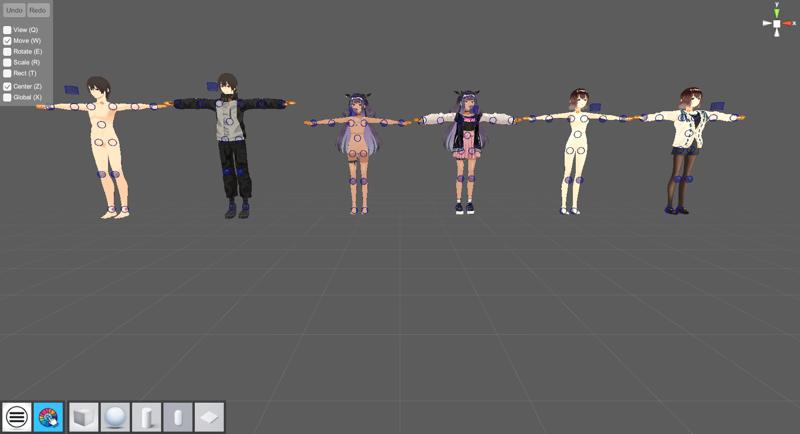
Mouse right drag, wheel up/down, wheel click+drag, Alt+mouse left drag to move viewpoint. 1 key for blue shapes, 2 key for orange shapes, 3 key to hide each UI.
Ctrl+P to take a screenshot (Save to -> AIA\Capture).
Icon Click:
Hamburger→hide the upper left menu
Color Picker→change background color
Figure→Basic object creation (delete with delete key while object is selected)
Pose can be changed using IK and rotation.
Blue circles are IK for body joints, limited to hands and feet, and rotation
Orange circles can manipulate the neck and fingers. Only rotation is possible.
Manipulation by clicking and dragging each point
Shift or Ctrl and left/right keys to expand and contract blue and orange circles
VRM model (humanoid) can be selected by clicking on the feet, and can be moved and rotated.
Handle description
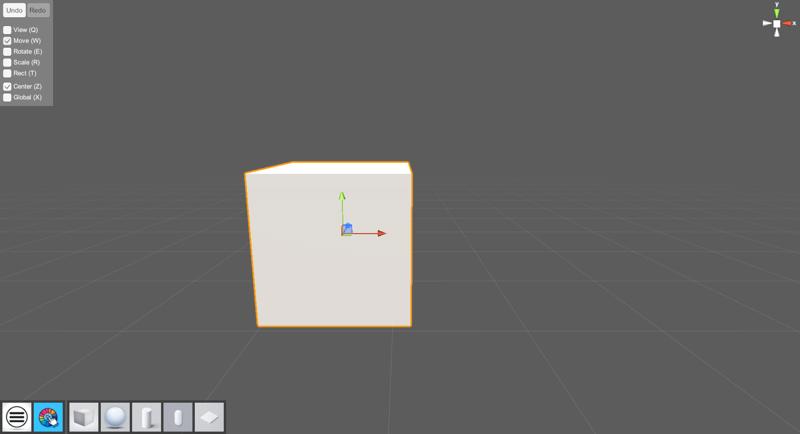
There are several types of handles during object selection. This can be changed by pressing the menu in the upper left corner or the corresponding key.
Q key: viewpoint movement handle
W key: object movement handle
E key: object rotation handle
R key: object expansion/contraction handle
T key: object select handle (for both moving and scaling)
Movement, rotation, and scaling by handles can be undone (Ctrl+Z) and redone (Ctrl+Y).
Get Depth
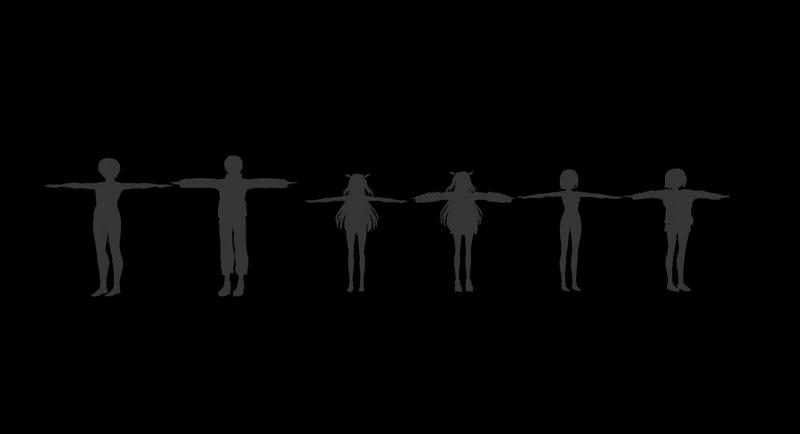
Ctrl+D keys to get depth for each model
While acquiring depth, you can change the intensity of the depth with the left and right keys, but the unevenness of things will be emphasized, but the white color will be faded
From v1.08, the body can be deleted and only the hands can be displayed. To switch the display, press the up key.
Get normal map
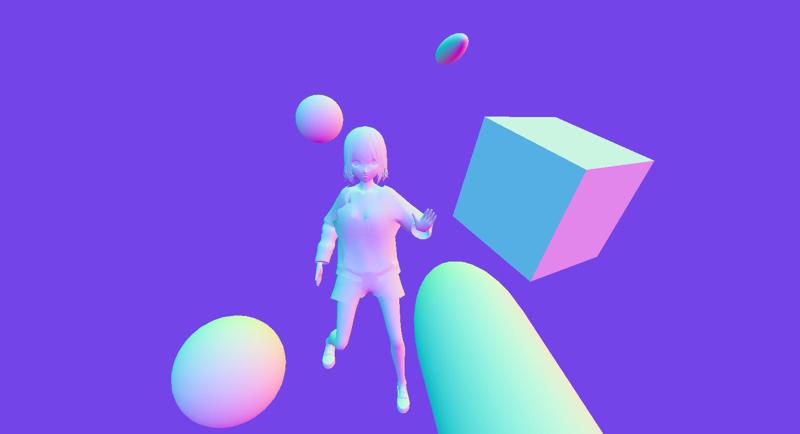
Ctrl+N key to get normal map
Open pause
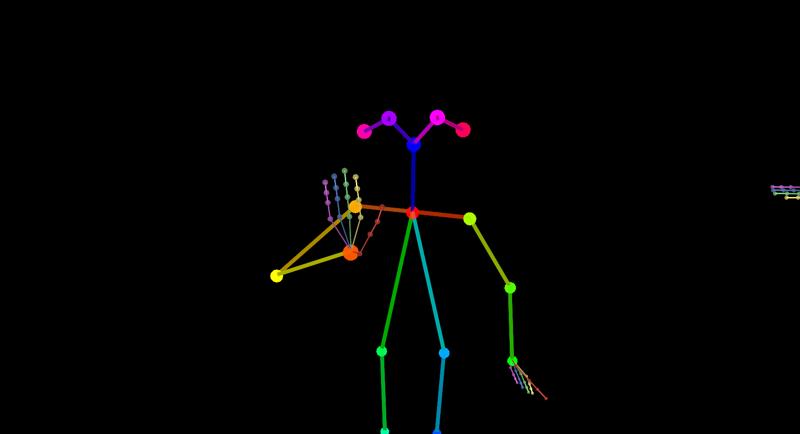
Ctrl+O key to display lines for open pose
Left and right keys to expand and contract joint circles
Finger line can be erased by pressing the up key
Model import
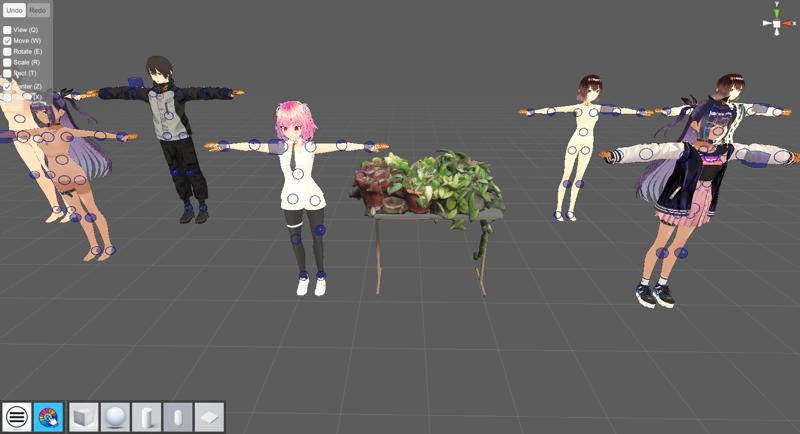
Imported pink hair vrm and plant shelf
Import vrm, glb and gltf models in (AIA\Import) folder by pressing Ctrl+I key.
For simplified implementation, it is not possible to select models, and all model files in the folder are imported at once.
Model Selection Shortcuts
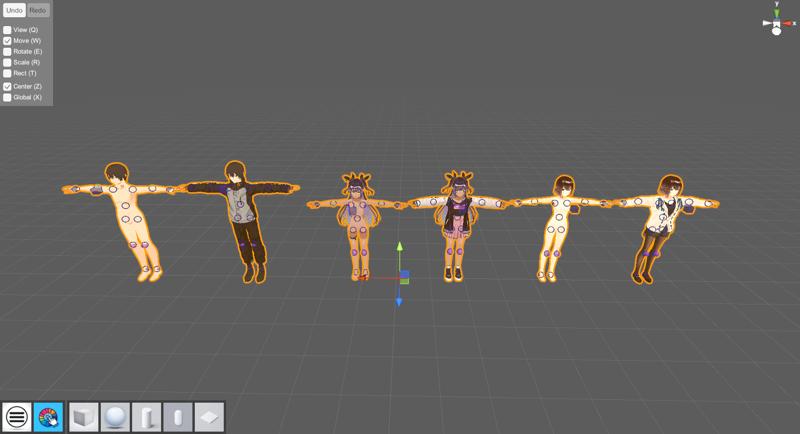
Pressing ctrl+1~6 selects each sample model
Pressing ctrl+0 key selects all sample models
Finger rotation aid slider
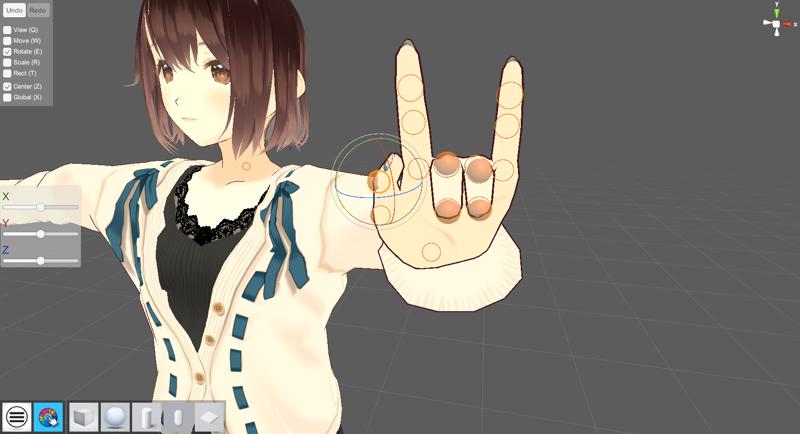
It appears on the left side of the screen when the orange circle of the joint is selected.
There are three sliders corresponding to x-, y-, and z-axis rotations, and by moving them left or right, the rotation values can be changed.
Explanation of rotation for each axis:
The x-axis is rotation based on the center of the finger, the y-axis is rotation to move the finger left or right, and the z-axis is rotation to fold or stretch the finger.
Color Change Function for Segmentation
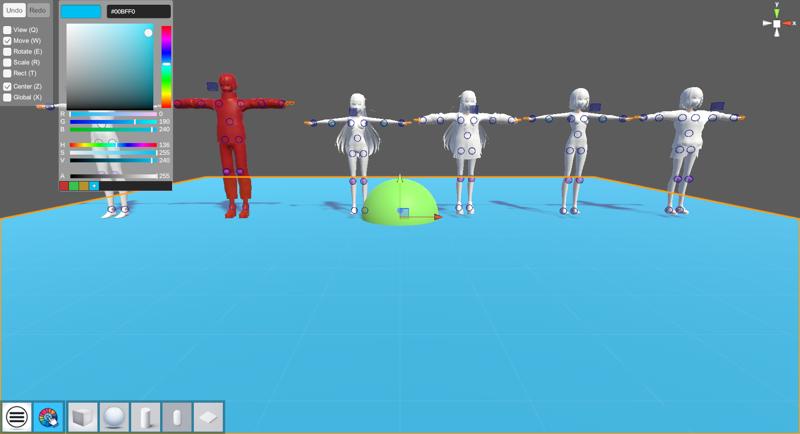
Basic graphic objects that can be added with icons can be color-changed at any time from the color picker when selected.
In addition, humanoid models can be changed to a texture for color change by pressing Ctrl+C, as shown in the image, and the color can be changed in the same way and returned to the original state by pressing Ctrl+C again.
Saving and loading humanoid model poses
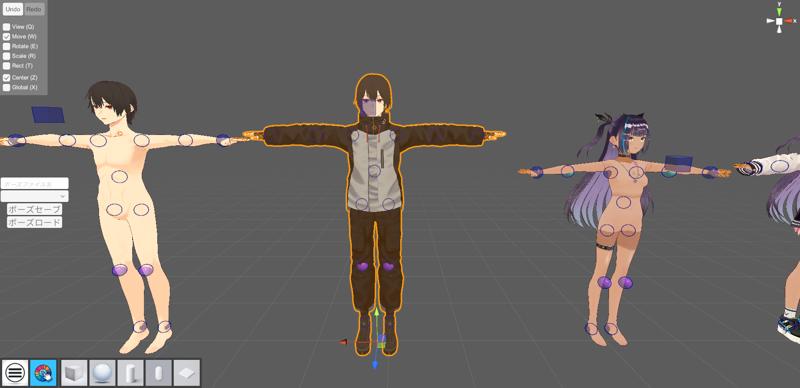
Select the humanoid model → enter a name for the save file(ポーズファイル名) → select from the drop-down which pose to save: full body/body/finger → save with the Save button(ポーズセーブ).
To load a pose file, select a model and click the "ポーズロード" button to open a file selection dialog.
The file format is json, and the destination folder is AIA\BodyData.
Changing the area where screenshots are taken (switching aspect ratio)
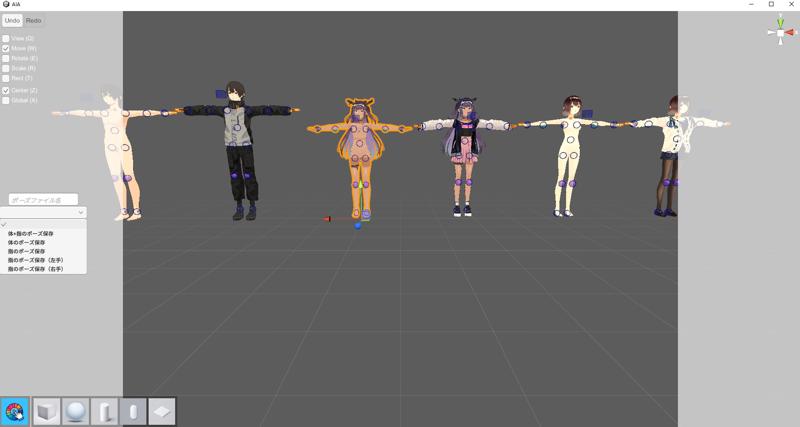
By pressing Ctrl+W, you can switch the aspect ratio for taking screenshots. There are five ratios that can be switched: 16:9 9:16 4:3 3:4 1:1.
Scene save function
The position and pose of objects in a scene can be saved and loaded.
The save menu can be toggled by clicking the hamburger menu icon in the lower left corner. Data is saved in the SceneData folder directly under the application.
Note that saving the state of color changes is currently supported only for basic objects (circles and squares that can be displayed in the UI).
Other
This tool is an alpha version and specifications are subject to change without notice.
Description
A slider function to assist finger movements and an object color change function for segmentation have been added.
FAQ
Comments (8)
how do you export the pose, or its openPose and all the rest?
生成AIで使うためにどうすればよいか、という質問でしょうか。そうならば、Ctrl+Pキーを押してスクリーンショットを取れば、Captureフォルダに画像が保存されますので、それを使用してください。
CivitAIの説明に注釈をつけ忘れていました。CivitAIバージョンは、AIA/AIA_Data/Captureフォルダにスクリーンショットが保存されています。
@yukidaruma115590 nice, tnx
新しいバージョンをアップロードしました。新しいバージョンでは、AIA_Dataではなくアプリ直下にフォルダが移動しています。
same question. only in english
@emotionaldreams4 lol
@emotionaldreams4 also, read the description carefully it says all the shortcuts you need