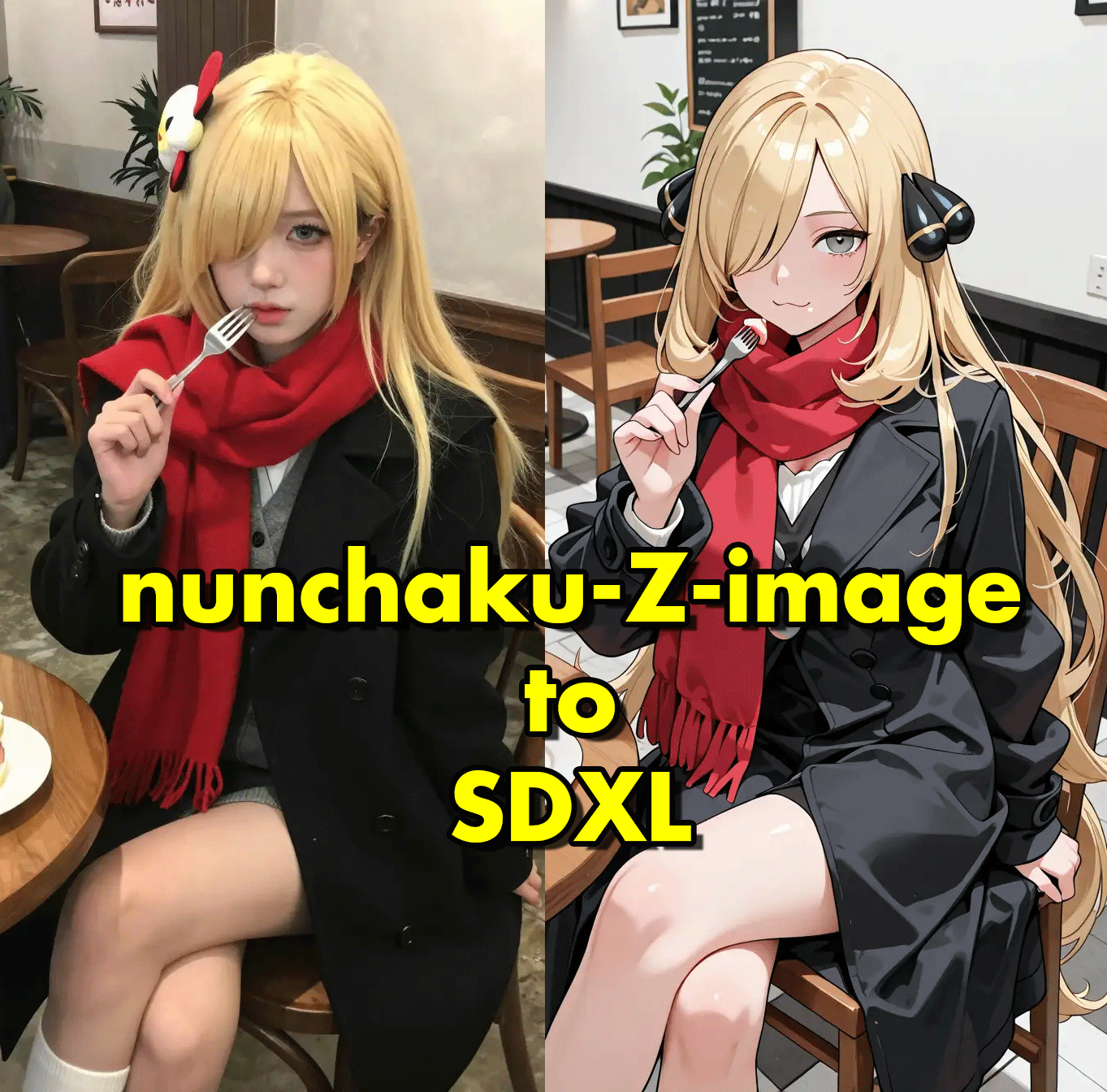



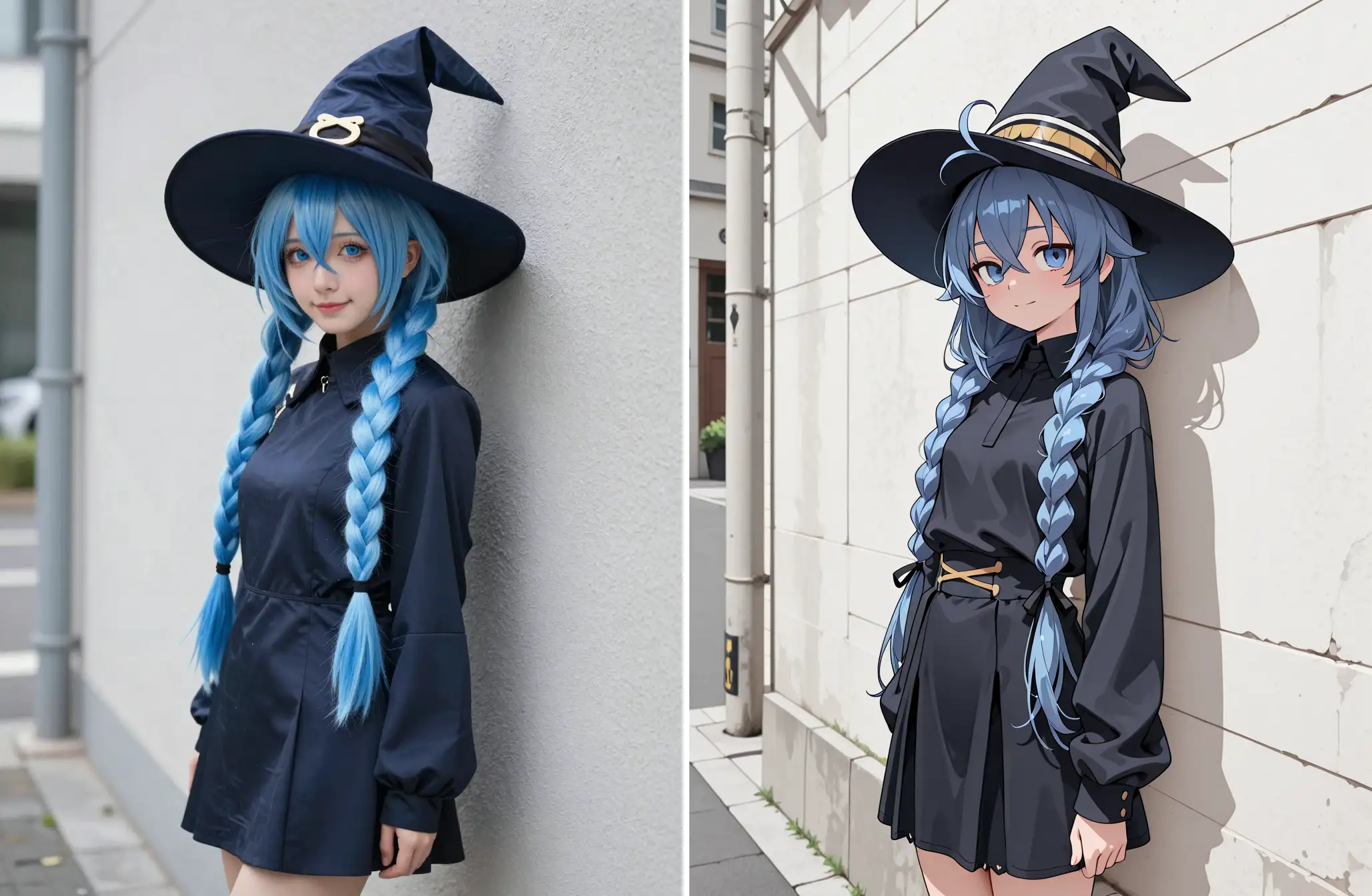
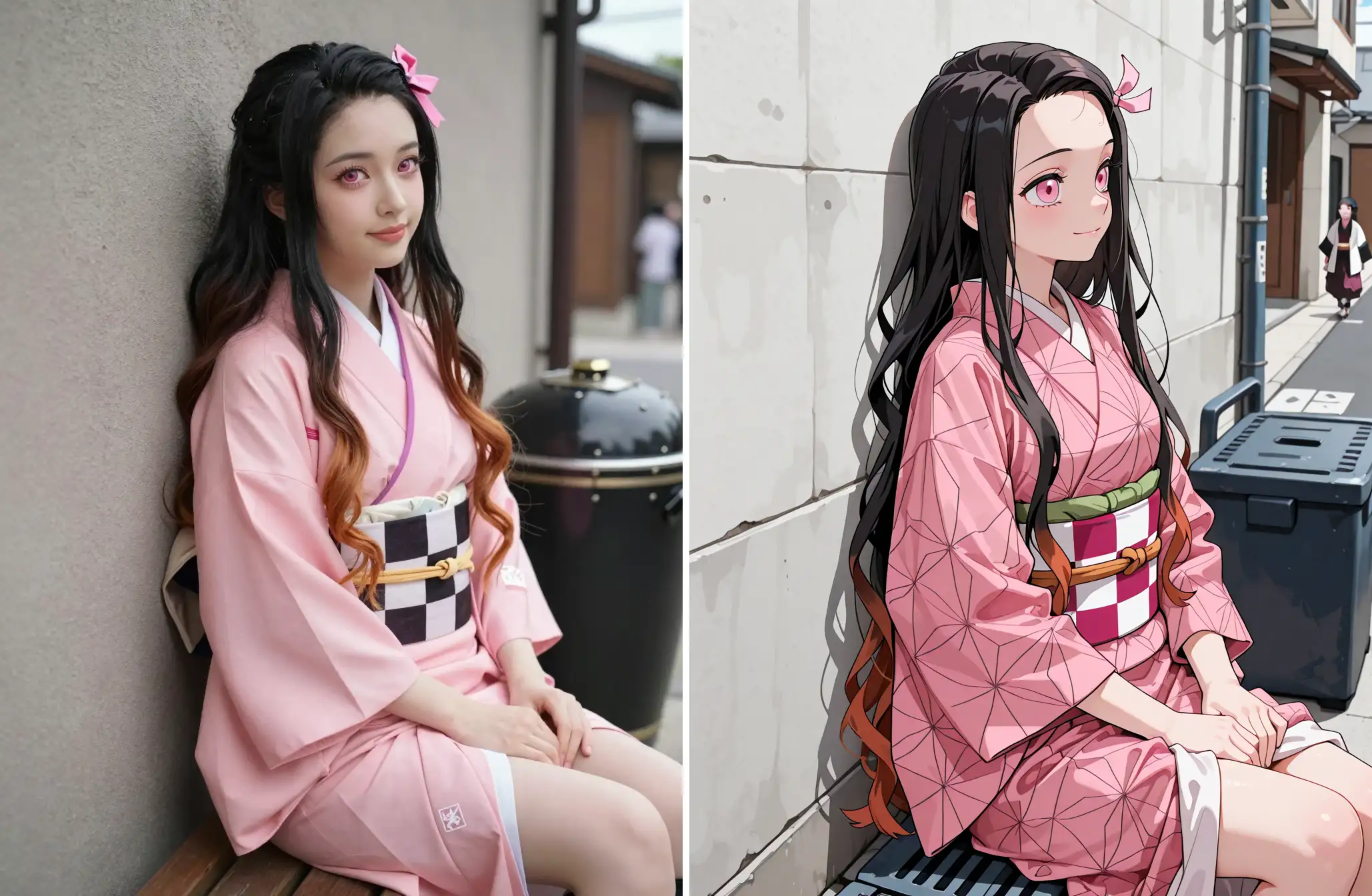


nunchaku-Z-image_to_SDXL
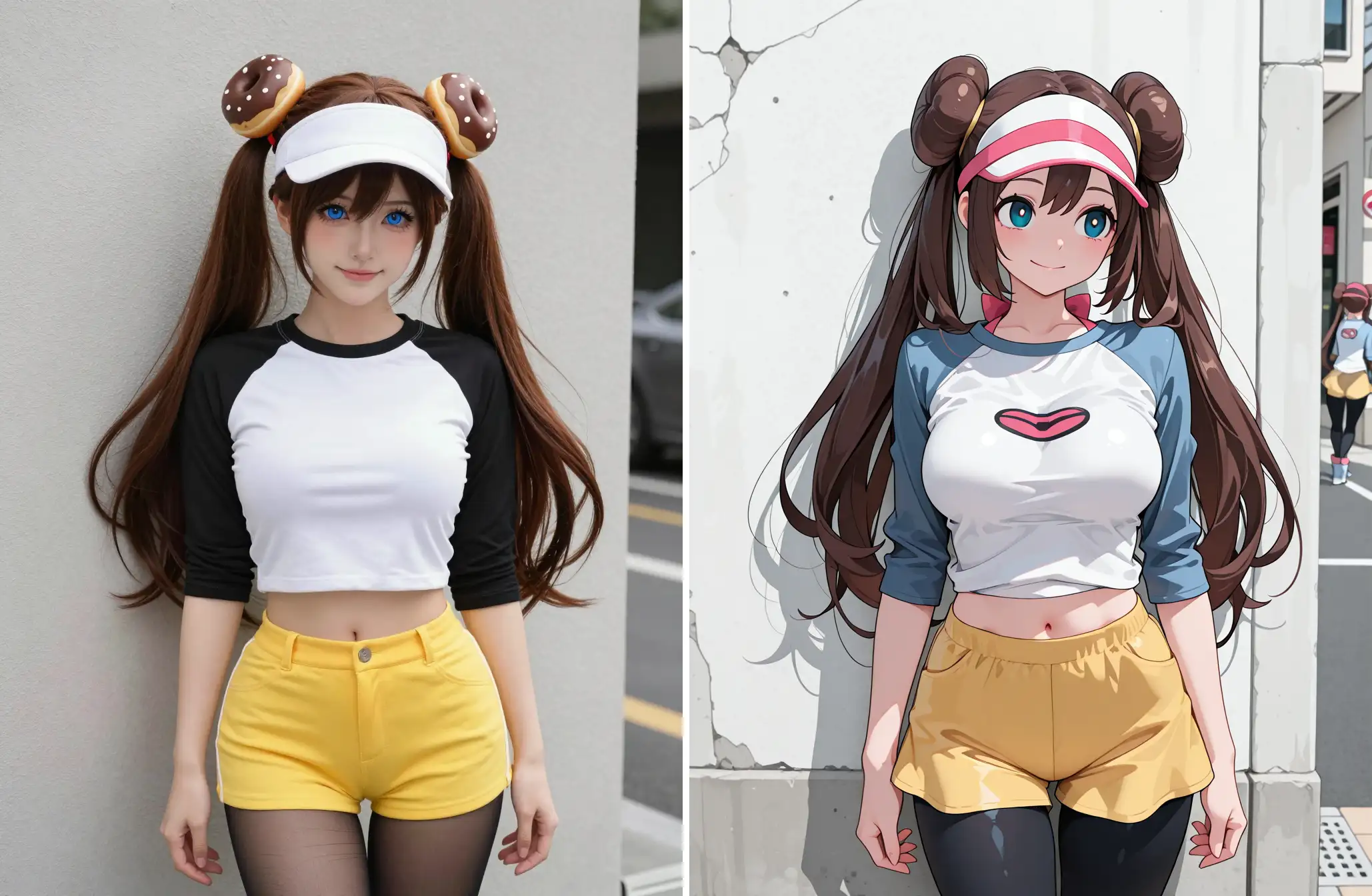
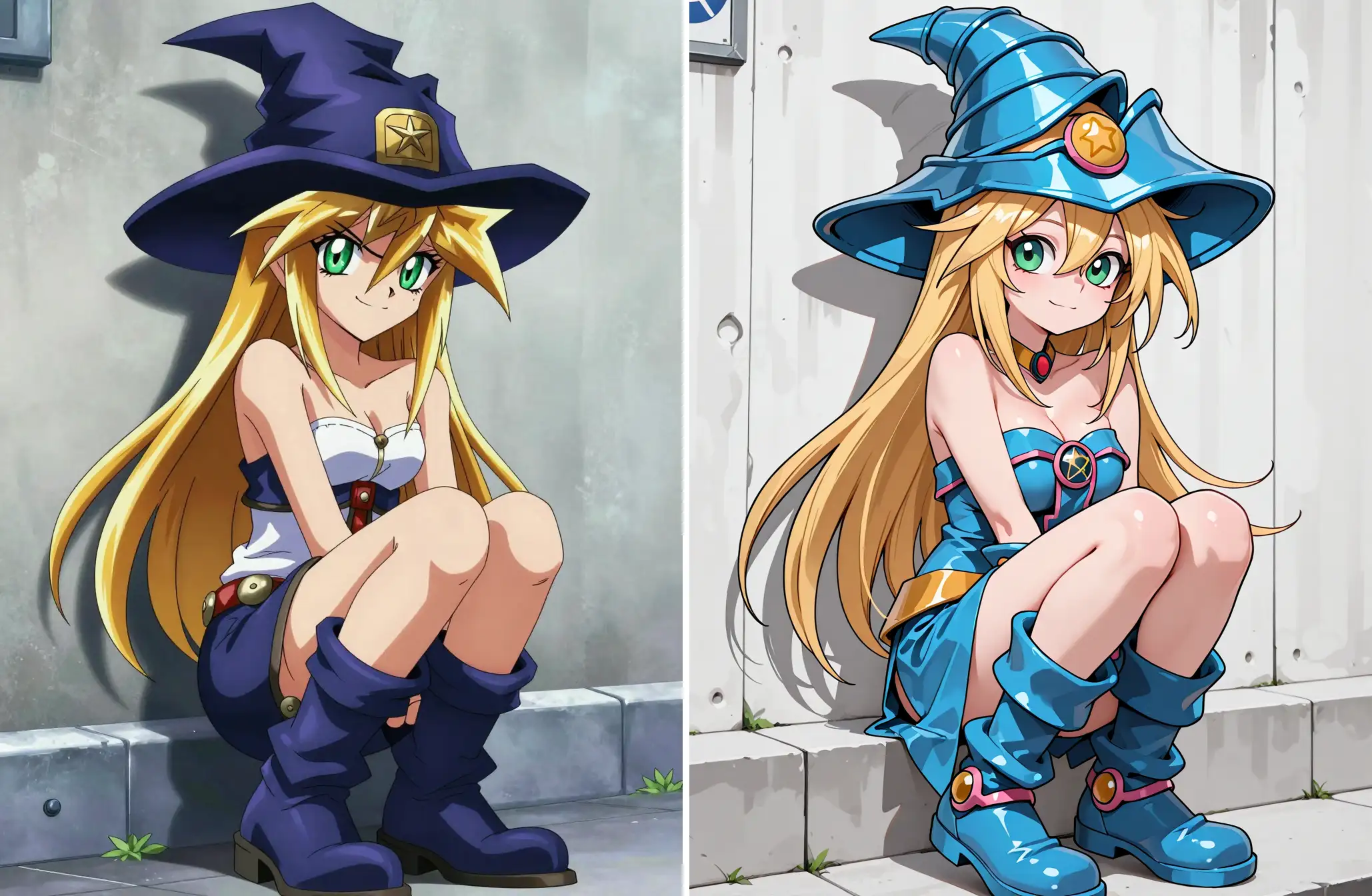
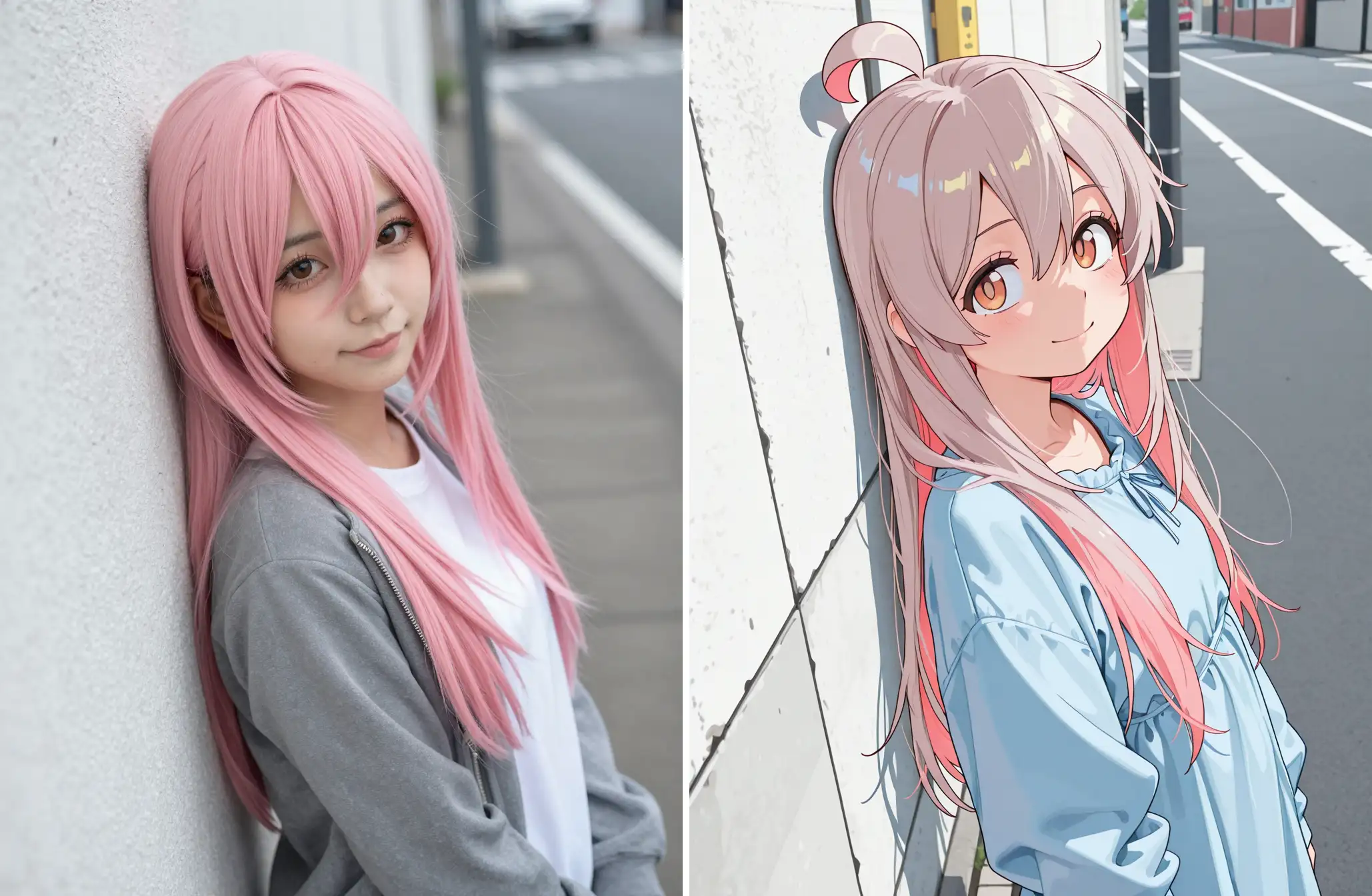
The purpose of this workflow is to mix ZIT's excellent prompt tracking and high image quality with illustrious-SDXL's vast AGC character resources.
In other words, characters that ZIT has not yet learned can be expressed using illustrious-SDXL's learned resources without using Lora.
It combines nunchaku-Z-image-turbo and SDXL for extremely fast generation speeds.
This is how I use it, but it's up to you to use it in your own way.
SVDQ Nunchaku-Z Image Turbo with SDXL Workflow
Very faster generation speed compared to Z-image-Turbo to SDXL (workflow)
Requirements
ComfyUI ver. 0.6 or higher
Install or Updated to Nunchaku version 1.1.0
Install or Updated to ComfyUI-nunchaku version 1.1.0
Models
nunchaku-z-image-turbo or Z-Image Turbo - Quantized for low VRAM
Illustrious Model
Civitai | Share your models Illustrious Checkpoint
also recommend my merge model
Luc_meqemeqe - v1.0 | Illustrious Checkpoint
DMD2 Speed LoRA
dmd2_sdxl_4step_lora_fp16 or dmd2_sdxl_4step_lora_fp32
Here is a great explanation by Simplesmente
Thank you very much, Simplesmente!
This official workflow must work before it can be used.
https://nunchaku.tech/docs/ComfyUI-nunchaku/workflows/zimage.html#nunchaku-z-image-turbo-json
I use ComfyUI 0.6.0 from Stability Matrix
Install ComfyUI anew
Pytroch 2.9.1+cu130 (December 30, 2025)

Install ComfyUI-nunchaku with Manager and restart

Nunchaku Installer


add Preview as Text

connection

mode: Select update node and run
 Follow the text press "R"
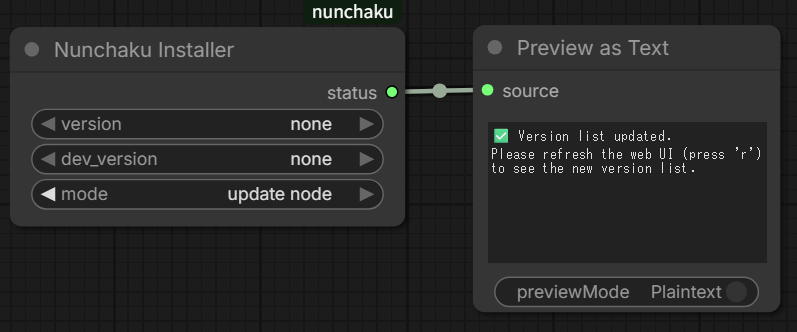
verson : 1.1.0
mode : install
Then RUN

Success! Installed
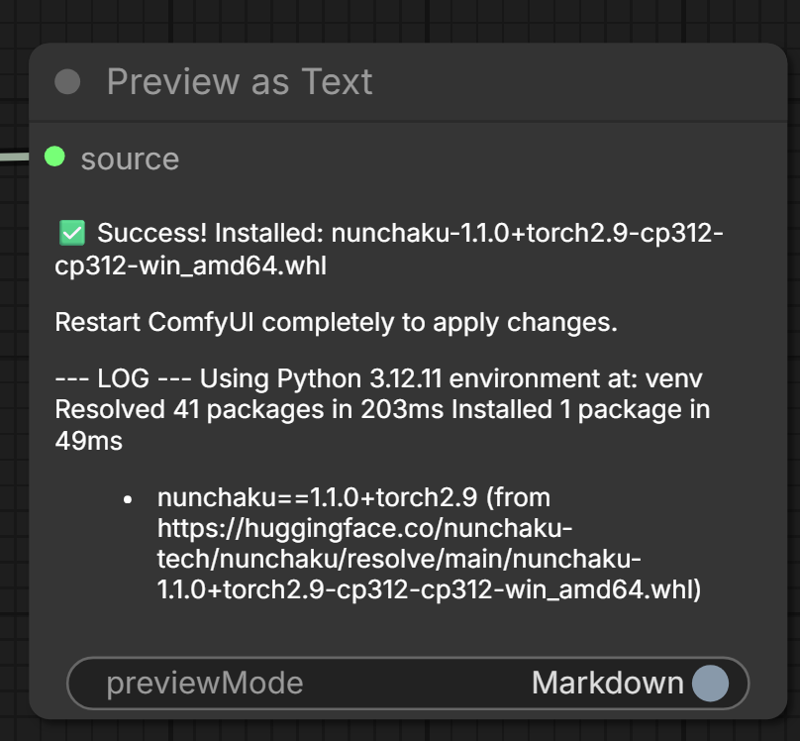
Restart ComfyUI
 Download this workflow and drag and drop it.
This dialog box will appear, so download each model to the designated folder.


Download nunchaku-z-image-turbo to " diffusion_models " folder
(.\StabilityMatrix\Data\Packages\ComfyUI\models)
nunchaku-tech/nunchaku-z-image-turbo at main
RTX50xx is fp4, RTX40xx, 30xx is int4
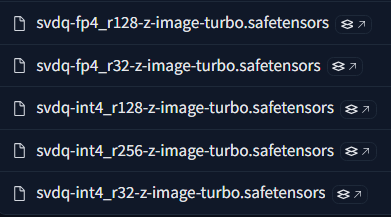 I have an RTX5060Ti 16GB so I chose fp4_r128
Download the model and place it in the designated folder. Press "R" to update the model.
"RUN"

Similarly, drag and drop this workflow "nunchaku-Z-image_to_SDXL.json"
Missing nodes are installed from the Manager's Missing Custom Nodes
restart
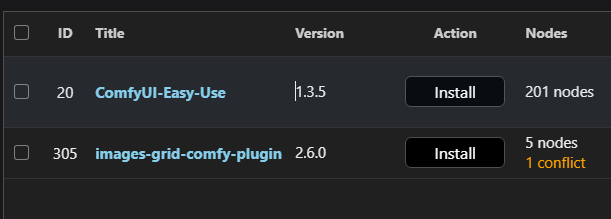
Checkpoints folder contains the Illustrious Checkpoints of your choice.
DMD2 Speed LoRA to the loras folder
dmd2_sdxl_4step_lora_fp16 or dmd2_sdxl_4step_lora_fp32
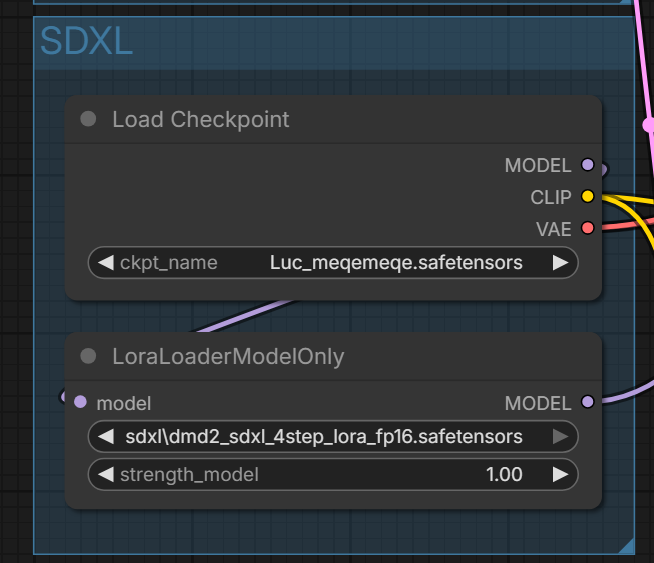
Download the model and place it in the designated folder. Press "R" to update the model.
"RUN"
 If you want to use Lora with nunchaku-z-image-turbo,
Install the following custom node:
Description
FAQ
Comments (2)
I don't understand, does this WF transform cartoons into real characters and vice versa? Can it transform SDXL cartoon images into real cosplay characters?
The goal of this is to use the excellent composition of Z-image-turbo (Nunchaku) to express the training data of Illustrious.
https://hbl917070.github.io/DrawingSpells/
These are the training data for Illustrious.
Therefore, I think its use will be limited, but how you use it beyond that is up to you.