


About Workflows
There is 3 workflows:
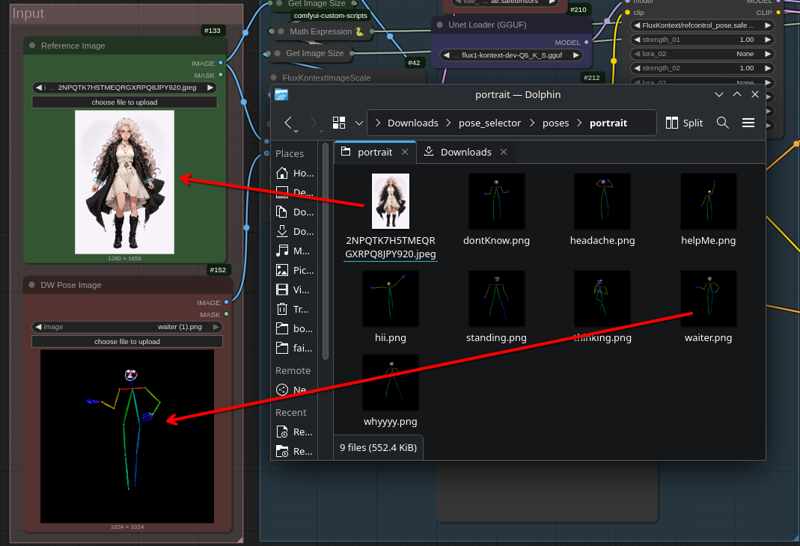
1_recomended_pose_lora - recommended workflow with new pose lora created by thedeoxen. Paste DW Pose image from poses folder in DW Pose Image node, paste image of your character, in Reference Image node.
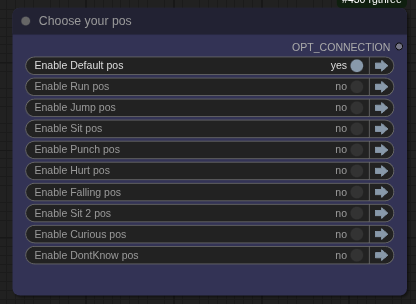
classic_pose_lora - same thing like 1_recomended_pose_lora, but, you are limited by list of poses, you not need to paste DW Pose, only Reference Image. All pose images are baked in workflow.
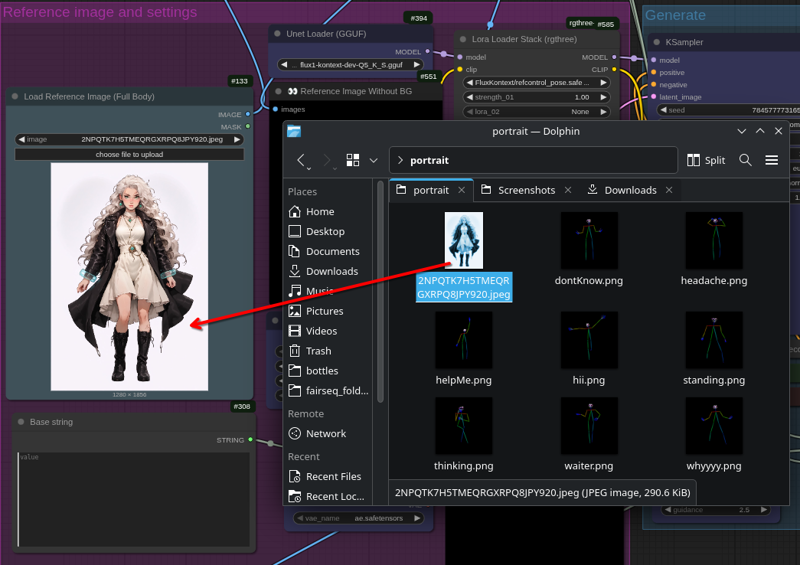
classic_without_pose_lora - workflow without any lora, uses descriptive predefined prompts and pose images as a reference. All pose images are baked in workflow.
Tutorial for classic_without_pose_lora workflow
Choose pose for you character from list of poses.
How to use:
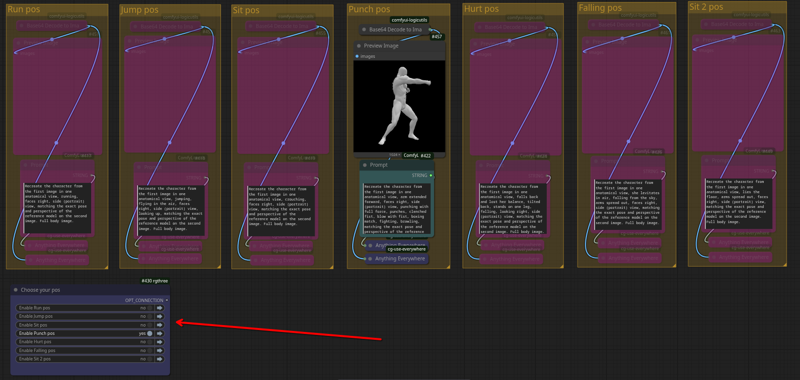
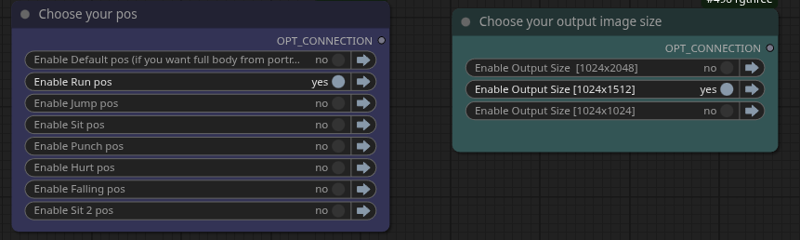
Choose pose in "Choose your pose" node
Load full body image of your character
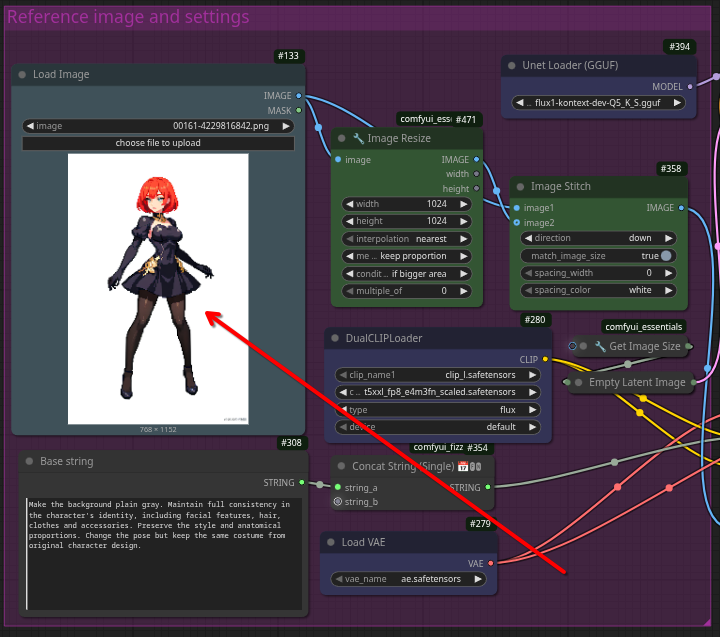
Click run
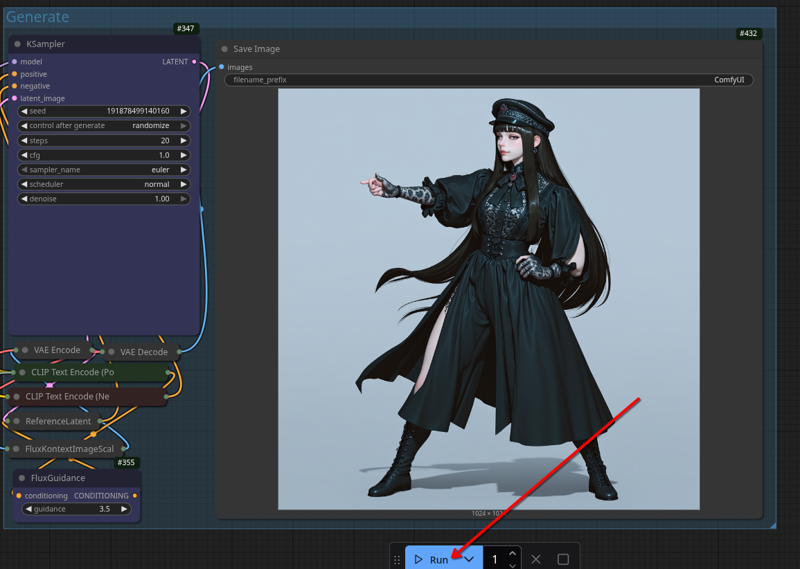 Additionaly
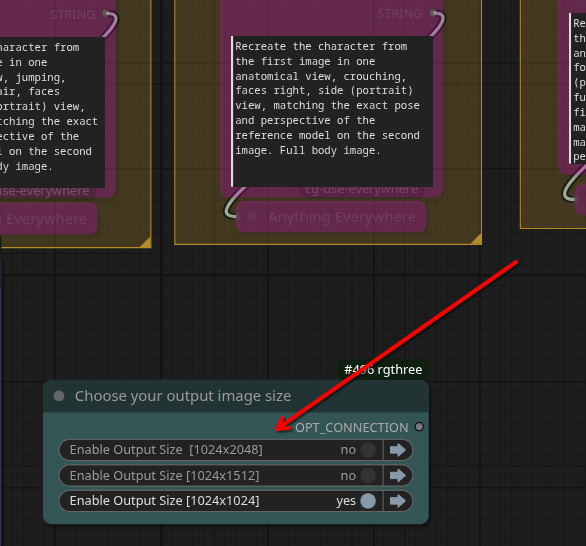
You can choose output image size
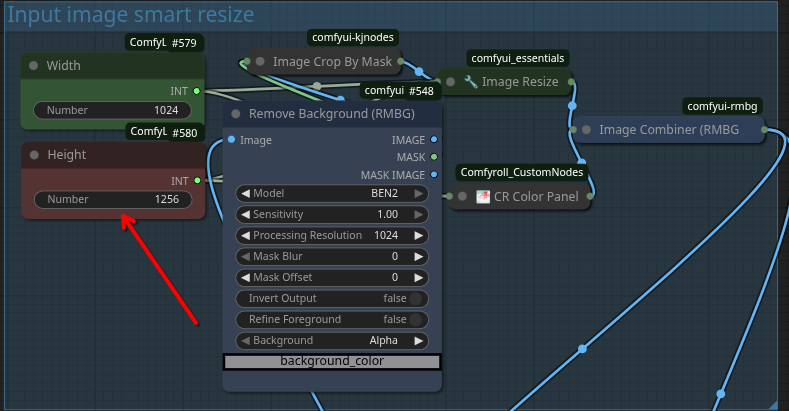
 You can change height of reference image. It can make pose following better or worse. I recommend to keep height size > 1080px (1080px height size of pose image)
 You can add a new output image size, or a new pose, by duplicating any of existent "size" or "pos" groups. "Size" groups must have "size" word inside of title. "pos" group must have "pos" word in the title.
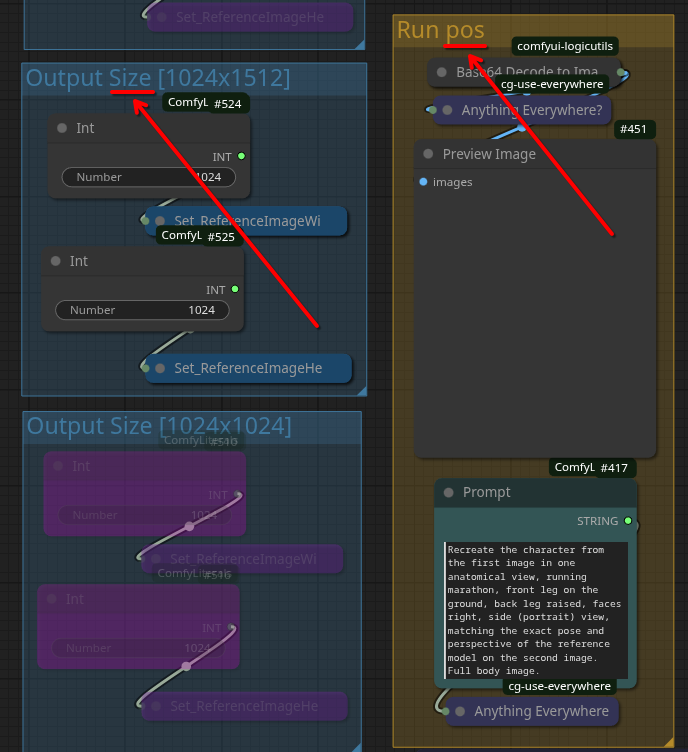 New poses or sizes will automatically appear in "Choose your" list
 Pose images are baked in workflow
This workflow is based on Kontext character creator workflow, made by alcaitiff
Description
FAQ
Comments (9)
amazing workflow thanks a lot. there is a way to incorporate a customized pose into the workflow?
Yes, i think. You can add a new pose, by duplicating any of yellow "pos" groups, changing the pose image to what you want, and by changing a prompt to describe your pose.
@nothingherern450454 Okay, no problem, thank you very much for your response. I have another question: due to my lack of experience, I'm not sure where to find the reference images for the poses. Could you please show me how to change them?
@redforce770387 you can get pose on PoseMy Art, click on a T-Pose icon in left-bottom corner, and, click on first button (dancing icon), you will find a large list of poses, choose one. When you are happy with the pose, go to settings, turn off "Floor grid" and "Ground". Next, click on Screenshot button (Camera icon) to save png image of a pose. Next step, put this pose in black square 1024x1024px, and save. Pose image in black square, convert to base64 via base64 guru site, and put base64 code in "Base64 Decode to Image" node inside "pos" group. That's all.
@nothingherern450454 thank a lot
What would you modify to conserve the background of the reference image? If I specify "Keep the background" or "Keep the same background theme" instead of making it plain gray, it doesn't change the pose and seems not to make much difference as transformation.
Also, encoding the image reference in Base64 is really smart! Don't even need to have any image to load, just data. Great future proof feature.
Sorry, i don't know how to keep same background. I will try do keep it, and, if I succeed, I will post the workflow.
Just modify the prompt related to the pose by adding a description of your background. For example, the character is walking barefoot on a sunny beach on a summer day or option 2 Once you have obtained the image with the desired pose, transfer it into the basic workflow to change the background. The prompt should be: 'Change the background of the image on the left to a sunny beach on a summer day in the image on the right.
@redforce770387 Hmm I was trying to find a universal wording so that it would accept all type of background instead of manually changing it. I guess I could use florence to describe the image and gather the background info this way.