


With a help of an user in Banodoco discord, I've change the way it generates the sampler by adding a noise correction to generate better quality images
August 26th 2025 - I'm also abandoning Flux and moving to chroma, will keep all versions here, but probably will not update them anymore
I've created this workflow as a way to streamline my process—partly due to a bit of laziness and a frequent lack of creative spark. It’s designed to help generate consistent, high-quality results with minimal effort.
Please note: for this to work correctly, you’ll need to install the Image Metadata Extension directly from the GitHub repository below, if you want to save the images with Metadata, otherwise just replace it for the normal save image or one of you preference:
https://github.com/edelvarden/comfyui_image_metadata_extension
The version included with ComfyUI currently has some issues, so it’s highly recommended to use the GitHub version instead to ensure full functionality.
You will need to create the Wilcards folder in the main ComfyUI folder and have the wildcards there:
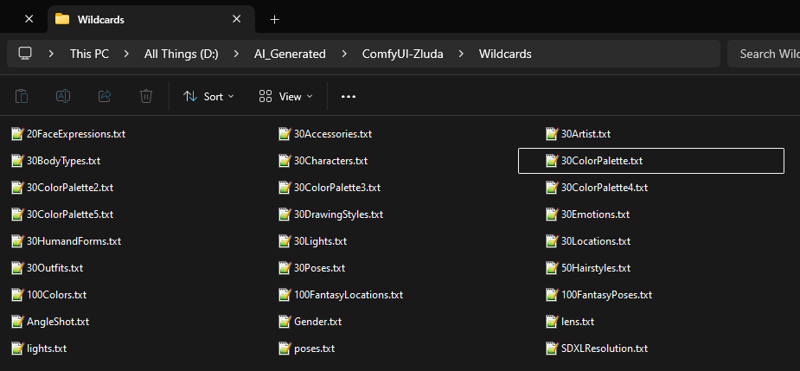
Workflow explanation:
Wildcards group:
The Wildcards group is where you will setup the wildcards that you want to use. All wildcards are written with double underscore ( __ ) before and after the name of the file that includes the values to be used.
Example, I have a wildcard in the ComfyUI/Wildcards folder that is called poses.txt, to use it, I would need to add the __poses__ in the Wildcard Processor (Mikey) node
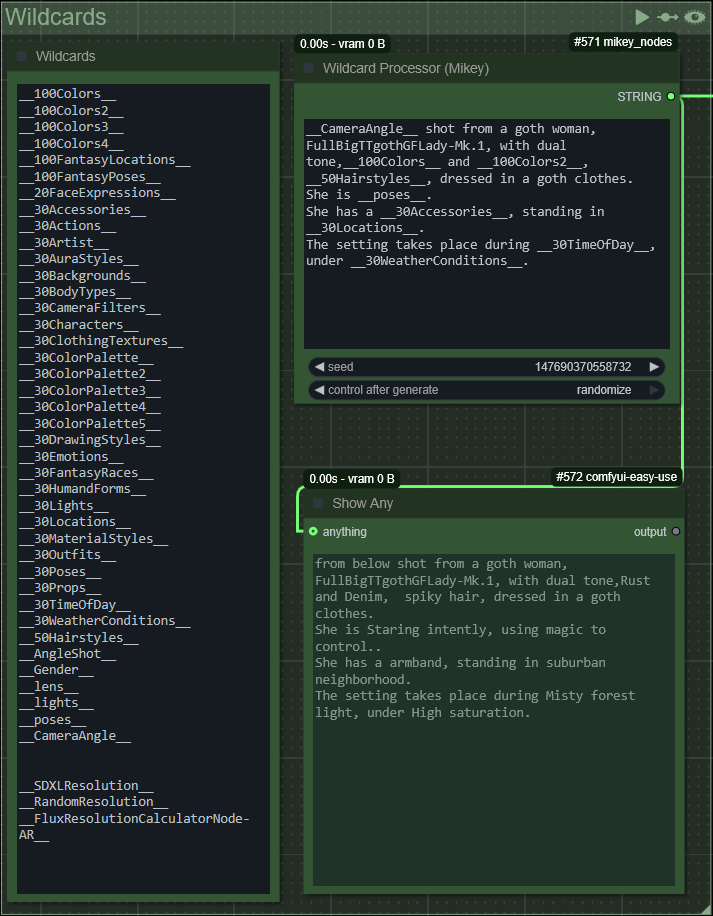
I've kept a Note node So i can keep up with all the wildcards files that I have created
Here are all the wildcards that I've generated until this point:
https://drive.google.com/drive/folders/1pxNUsNx7EUBxm55fHdcpWsEGmzpl1euK?usp=sharing
RandomFluxResolution Group
In this group, it is using the wildcard FluxResolutionCalculatorNode-AR that has all the AR that the Flux Resolution Calc node is expecting to receive
With this change, you don't need to worry about having the wrong resolution, as it will generate the correct one with the correct AR
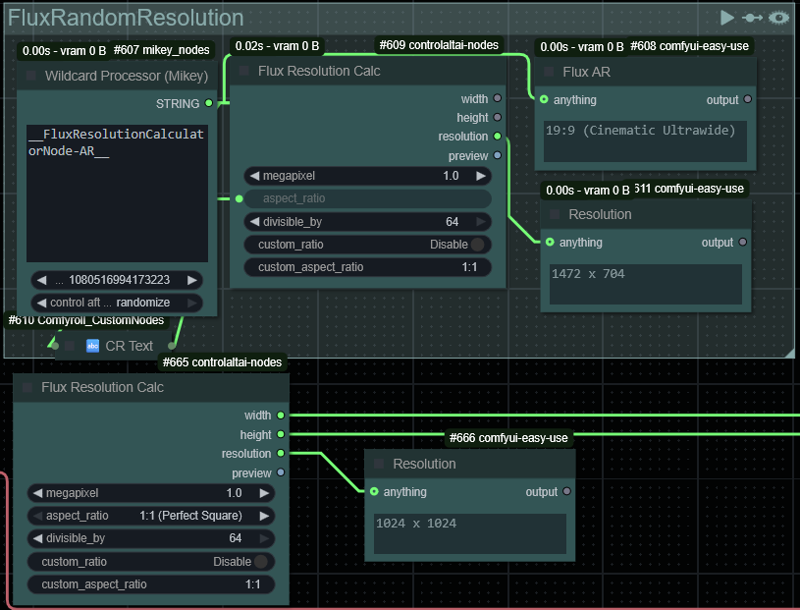 If you don't want to use a random resolution, you only need to disable this group and add the latent node as you wish.
Randomize LoRAs node
I've added this node in the attempt to also randomize the loras for drawing styles.
You can enable it or disable it as intended.
These are my custom nodes, one is for you to only select the folder and the other one is for specific loras
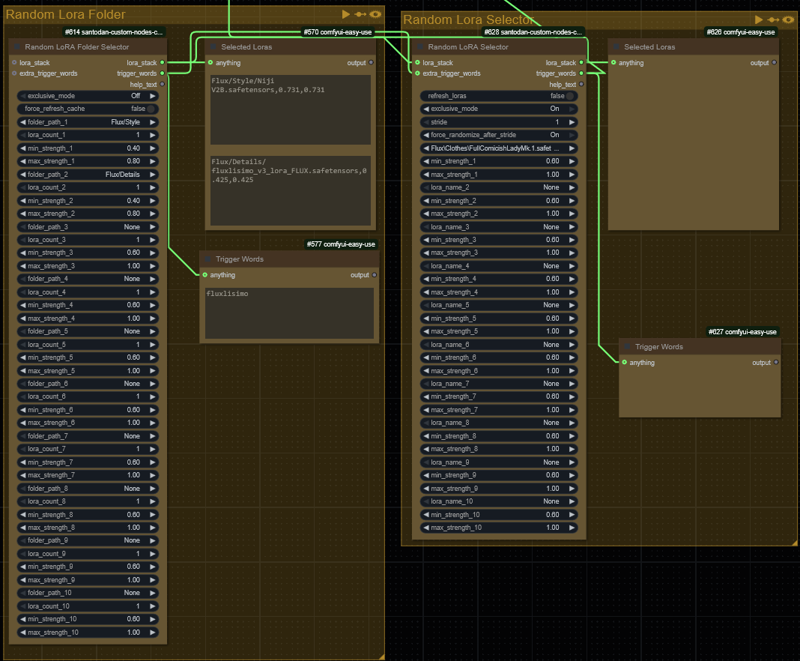
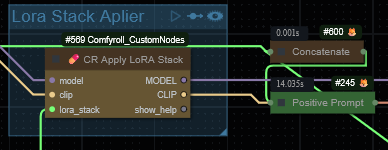
Lora Stack Applier
In case you don't want to apply any lora, you can bypass this node / group
Loaders Group
This is the group with what I've been using together with flux
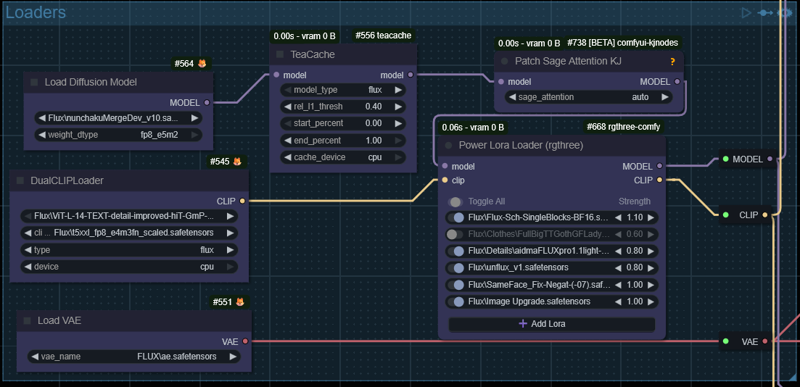
If you want to use with other models, you will need to adapt this as needed and also taking attention to the Samplers group as there is the ModelSamplingFlux and FluxGuidancenodes
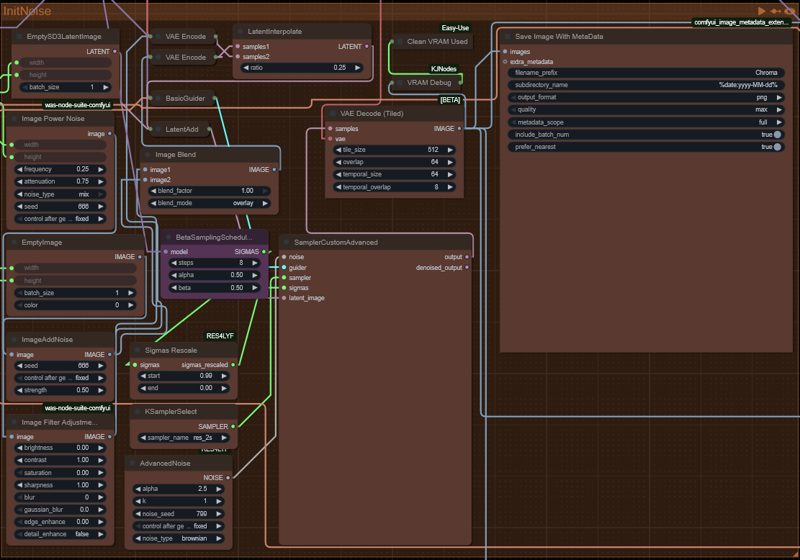
InitNoise Group
These are the new samplers that correct the noise
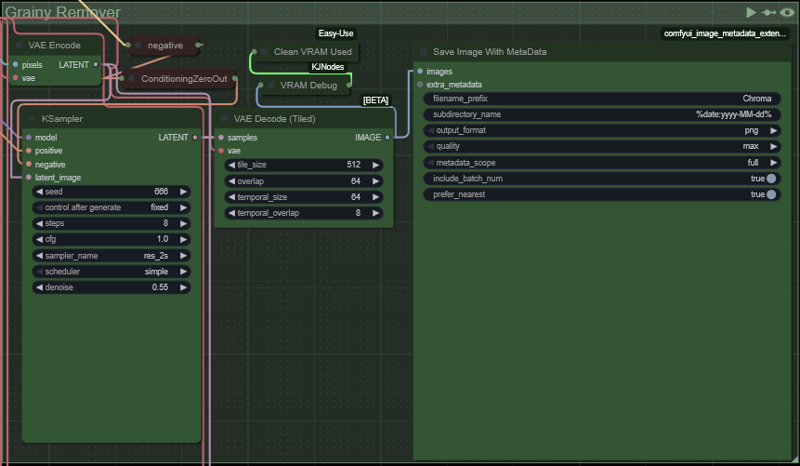
GrainyRemover Group
The purpose is to correct the images with a lot of grainy, I would let it run together with the InitNoise so you could have both raw and corrected image
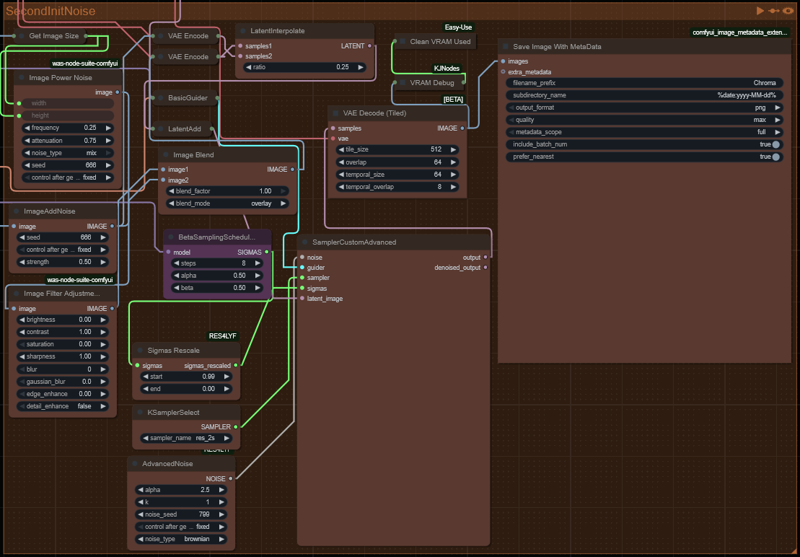
SecondInitNoiseGroup
This is not a mandatory one, but it is only to run a second run of the InitNoise to correct the grainy and also to change the image a little bit
Upscaler Group
This is the group that I used to upscale images with Ultimate SD Upscale
Together with SD Prompt Reader is no longer needed to manually add any data to have the upscale image saved with the same metadata as the original
Note
There is a known bug with SD Prompt Reader - https://github.com/receyuki/comfyui-prompt-reader-node/issues/113 and you might need to uninstall it and then install it manually using the command git clone --recursive https://github.com/receyuki/comfyui-prompt-reader-node.git inside your custom_nodes folder
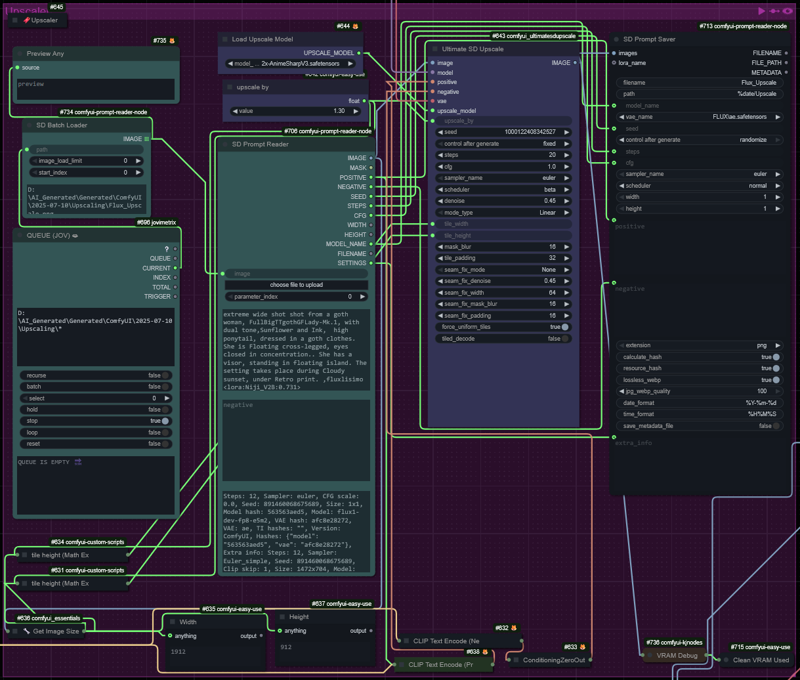
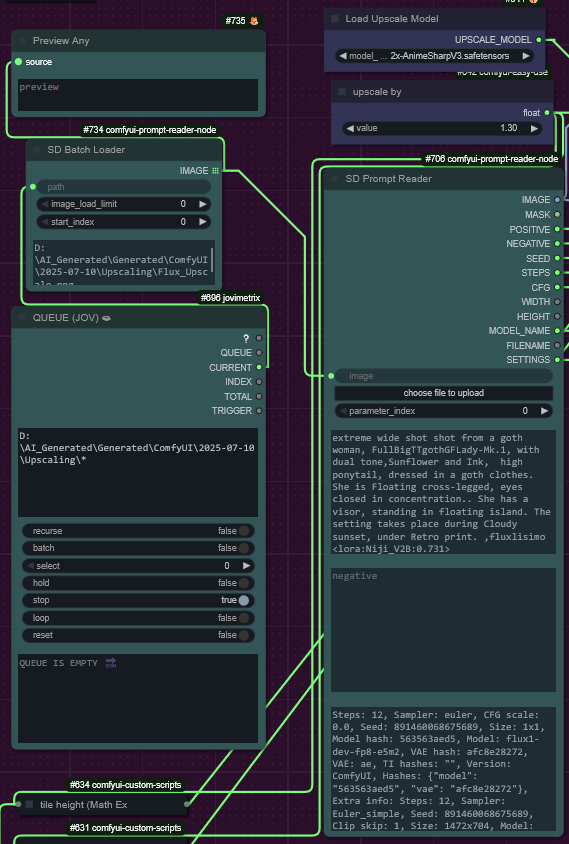
This part of the group is to collect the images from a folder and upscale them one-by-one per each queue job.
If you don't want to do that and want to go through a selected image, you will need to remove the connection from the SD Prompt Reader image input and then select the file
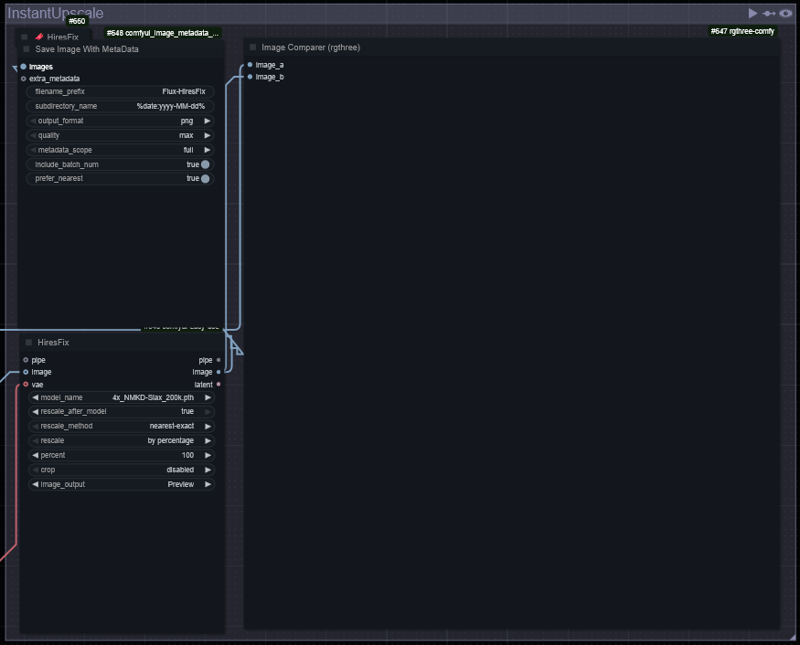
InstantUpscale
In case you want something more light, this node is to upscale faster and on the go after generating each image
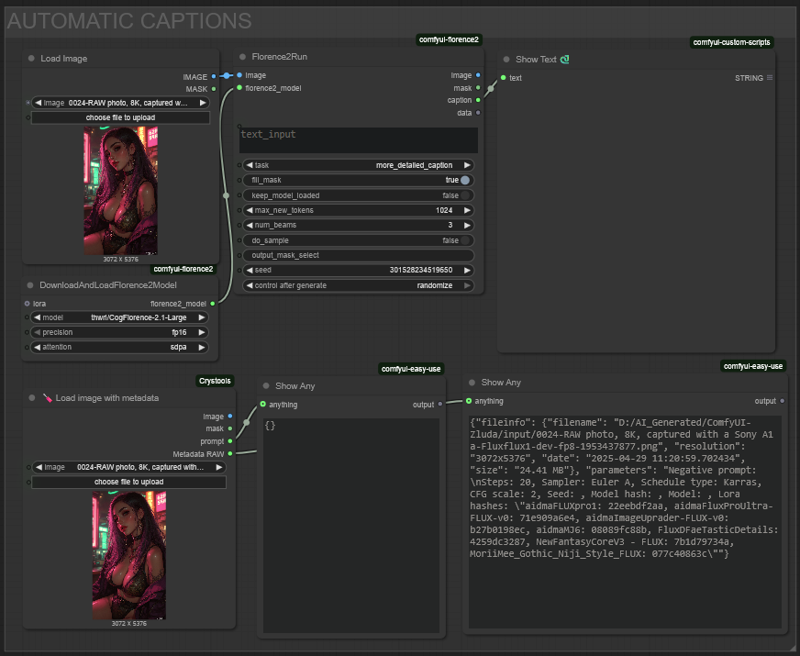
Automatic Captions group
This group is to help people to get captions / prompts for some images, it uses Florence2.
You just need to load the image and read the information from it or ask to generate the description text for it.
Description
Version compatible with Chroma