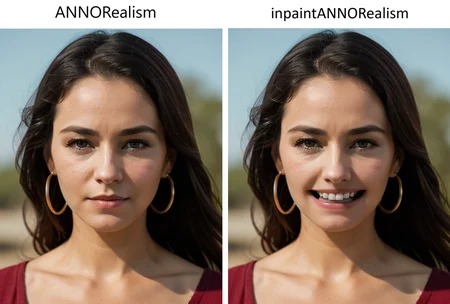
ANNOReal - The Pinnacle of Photorealism
ANNOReal is a state-of-the-art AI model engineered to achieve the highest level of photorealistic image generation. This model excels at creating visuals indistinguishable from real photographs, pushing the boundaries of what's possible with AI art. From lifelike portraits to stunning landscapes and intricate product shots, ANNOReal captures the nuances of the real world with breathtaking accuracy.
ANNOReal is an invaluable tool for:
Photography: Generate realistic photographs for various purposes, including stock photos, product showcases, and artistic projects.
Advertising: Create compelling visuals for marketing campaigns that capture the authenticity of real-world imagery.
Film and Television: Generate realistic scenes and characters for visual effects and virtual productions.
Design and Visualization: Produce photorealistic mockups and prototypes for products and environments.
Ease of Use: ANNOReal is designed to be user-friendly, making high-quality photorealistic generation accessible to all.
How to Use ANNOReal:
Clip Skip: 1-12 (Experiment to find the sweet spot for your prompts)
Sampler: Euler a, DDIM, DPM++ 2M Karras, UNI_PC (Explore different samplers for varied results, but Euler a is often a good starting point for realism)
CFG Scale: 5-10 (Lower CFG scales can sometimes produce more realistic results, but experiment to find what works best)
Steps: 30-50 (Higher step counts can contribute to increased realism and detail)
Hires Fix: Absolutely essential for photorealism. Use a high-quality upscaler like "8x_NMKD-Superscale" or "Latent" for best results, particularly at high resolutions.
VAE: A high-quality VAE is crucial for achieving photorealistic results. Experiment to find one that complements the model.
Size: Start with a reasonable resolution like 512x512, 768x512, or 512x768 and upscale with Hires Fix for higher quality.
Scheduler: Normal, Exponential, Karras
Example Prompts:
Positive: A young woman with long brown hair smiling naturally in a sunlit field, detailed skin, realistic lighting, professional photography
Negative: cartoon, anime, drawing, painting, illustration, sketch, blurry, distorted, extra limbs
Tips for Success:
Be extremely descriptive in your prompts. The more details you provide about lighting, composition, and subject matter, the better the model can understand your vision.
Pay close attention to lighting cues in your prompts. Realistic lighting is essential for photorealism.
Experiment with lower CFG scales and higher step counts to fine-tune the level of realism.
Use a high-quality VAE that is well-suited for photorealistic generation.
Description
inpaintANNORealism
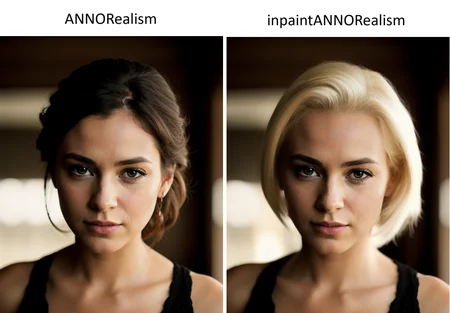
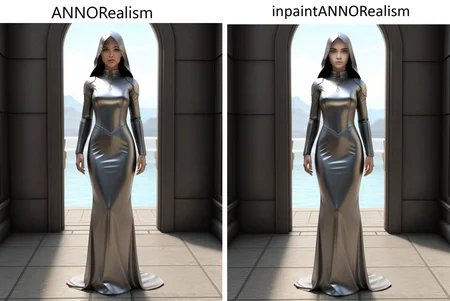
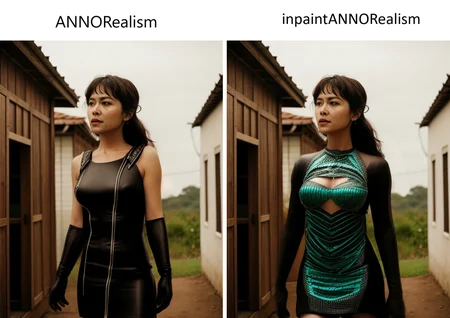
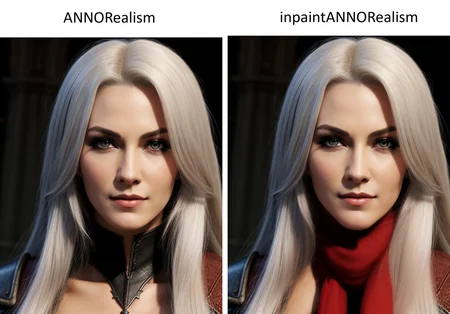
inpaintANNORealism is a powerful inpainting model designed to seamlessly modify and reimagine both people and objects within images. This model allows you to remove unwanted elements, add new features, change appearances, and even transform entire scenes with remarkable realism. Whether you're looking to perfect portraits, redesign products, or explore creative possibilities, inpaintANNORealism provides the tools to reshape your reality, one image at a time.
inpaintANNORealism is a versatile tool for:
Photo Editing: Remove blemishes, change hairstyles, adjust clothing, and perfect portraits with ease.
Creative Retouching: Add artistic elements, transform backgrounds, and create surreal or fantastical imagery.
Object Removal: Seamlessly remove unwanted objects from photos while maintaining realistic detail.
Realistic Inpainting: Seamlessly integrates modifications into existing images, maintaining photorealistic quality.
Creative Control: Provides tools to fine-tune modifications and achieve your desired results.
Enhanced Realism: Preserves details and textures to ensure modifications blend naturally with the original image.
How to Use inpaintANNORealism:
(Specific instructions may vary depending on the software or platform you're using. Consult the relevant documentation for the most accurate workflow.)
Generally, inpainting involves these steps:
Masking: Carefully select the area of the image you want to modify using a mask.
Prompting (Optional): Some inpainting tools allow you to use prompts to guide the AI in its modifications (e.g., "replace with a blue shirt").
Inpainting: Apply the inpaintANNORealism model to the masked area.
Refinement: Adjust settings and refine the results as needed.
Example Use Cases:
Portrait Editing: Change hair color, remove blemishes, add jewelry, or modify facial features.
Object Replacement: Replace a background object with something else entirely (e.g., change a cloudy sky to a sunny one).
Product Modification: Change the color of a car, add new features to a product mockup, or create variations of existing designs.
Tips for Success:
Precise Masking: Accurate masking is essential for clean and realistic results. Pay close attention to the edges of your mask.
Descriptive Prompts (If Applicable): If your inpainting tool supports prompts, be as descriptive as possible when specifying the changes you want to make.
Iteration: Experiment with different settings and refine your masks to achieve the desired outcome. Inpainting often requires some iteration to get perfect results.
High-Resolution Images: Starting with high-resolution source images will generally lead to better inpainting results.