iGEN ONE — Workflow Guide
579+ nodes · 40 groups · 13 component subgraphs · 2 pipeline rows
161 unique node types — 71% Eclipse nodes
Built with ComfyUI_Eclipse custom nodes
What Is This?
iGEN ONE is a modular, all-in-one image generation and post-processing pipeline for ComfyUI. It supports a wide range of diffusion models — Flux, Stable Diffusion, HiDream, and more — and covers everything from initial image generation through face detailing, upscaling, and watermarking in a single workflow.
The key design principle is modularity: every feature lives in its own group that can be independently enabled or disabled by simply muting or bypassing it. You never need to reconnect anything — the pipeline automatically adapts to whatever groups are active.
How It Works — The Basics
Layout
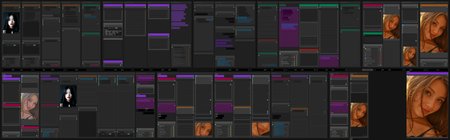
The workflow is arranged in two horizontal rows that you read left to right:
Row 1 (27 groups) — Everything needed to generate an image: image inputs, prompts, model loading, and rendering
Row 2 (13 groups) — Everything that happens after generation: refining, face swap, detailing, upscaling, watermarks, and saving
Between the two rows sits a routing banner — a strip of utility nodes that resolves shared resources (model, VAE, CLIP, prompts, image dimensions) so that every Row 2 group can find what it needs automatically.
Toggling Features On and Off
Each group has a Fast Mode Switcher panel — a small control panel that lets you mute or bypass individual sub-features within the group. Think of it like a row of toggle switches for that section's optional capabilities. To disable an entire group, you mute/bypass the group itself in the ComfyUI canvas.
To mute/activate an entire group: right-click the group header → "Set Group Nodes to Never" (mute all) or "Set Group Nodes to Always" (activate all).
When a group is muted/bypassed, downstream groups automatically skip it and pick up from the last active group. This works because of a priority-based fallback system: each group tries a list of possible input sources in order and uses the first one that's actually active.
You can enable any combination of groups and the pipeline will always find the right data path. There is no need to manually reconnect anything.
Data Routing
Instead of visible noodle connections between groups, iGEN ONE uses Set/Get nodes — named value channels that work like wireless connections. A SetNode in one group publishes a value (like "ref_image" or "model_init"), and a GetNode in another group retrieves it by name. This keeps the visual layout clean and makes it easy to rearrange groups.
Row 1 — Generation Pipeline
Image Sources (Groups 1–3 + 5–9)
The workflow offers four ways to get a starting image. Only one should be active at a time — the pipeline automatically picks whichever source is enabled. A loaded image can serve two purposes: as a visual reference for img2img generation, or simply as input for the Image to Prompt group (group 8) to generate a text description — you don't have to use it for img2img.
You can also load an image and skip the Initial Render entirely — disable the Initial Render switch, and the loaded image goes straight to Row 2 for detailing, upscaling, face swap, or any other post-processing. This lets you bring in images from anywhere (other workflows, other tools, photographs) and run them through the full post-processing pipeline.
1. Image Load
Load a single image from disk. This is the simplest option — pick an image and go. It also extracts any embedded generation metadata (model name, prompt, sampler, seed) from the image, and can optionally override the workflow's settings with those extracted values. This is useful for "remix" workflows where you want to re-generate with the same settings that produced the original.
2. Image Load from Folder
Batch processing mode. Loads images one by one from a folder, with controls for sorting (by name or date) and subfolder traversal. Like Image Load, it can extract and apply metadata from each image. Great for re-processing an entire folder of images through the pipeline.
Set the index to -4 for shuffle mode (random order, no repeats). The optional seed_input slot controls when special modes advance — connect a seed and keep it the same value to freeze the image selection while you tweak other settings. Change the seed value to advance to the next image.
3. Input Video Frame
Extracts a single frame from a video file, with a configurable frame skip offset. Useful when you want to use a video still as your starting image.
4. Text-Only Generation
When none of the above are active, the workflow generates purely from text prompts using an empty latent. This is the default "txt2img" mode. Even when an image source is active, it only becomes img2img if you also enable one of the i2i sub-features in the Initial Render group (i2i Denoise, Flux Preproc, DiffSynth Qwen, etc.) — otherwise the loaded image is only used for reference purposes like Image to Prompt.
After selecting a source, the image can pass through several optional processing steps:
5. Remove Background
Removes the background using BiRefNet, isolating the subject on transparency. Useful when the background would interfere with generation or when you want to focus on the subject only.
6. Image Crop — Auto
Automatic subject-aware cropping. Uses SegmentAnything (SAM) to detect the main subject, centers the crop on it, and resizes to your target dimensions. Best for single-subject images where you want tight framing.
7. Image Crop — Custom
Manual bounding-box cropping with pixel-level controls. For when auto-crop doesn't frame things the way you want.
8. Preview Cropped Image
A preview checkpoint with a Stop node. Enable this to see the crop result and halt execution before proceeding — useful for verifying your crop settings.
9. Resize Image
Simple resize to specific dimensions. Used when your input image doesn't match the target generation size.
The image source chain has a built-in priority system: it checks from the last processing step backward (resize → crop_preview → crop_custom → crop_auto → rembg → video → folder → load) and uses the first active result. So you can stack processing steps and the last one wins.
Prompt Construction (Groups 8, 18–23)
There are multiple ways to build your prompt, and they can be combined:
8. Image to Prompt
Uses an AI vision model (Qwen 9B, Q4_K_M quantization) to analyze your reference image and generate a text description. Runs via Eclipse's Smart LM Loader with a "Detailed Description" task. The result feeds into the prompt assembly group as one of the possible prompt sources.
18. Raffle
Random prompt generation from a curated tag system. Raffle builds prompts by randomly selecting tags from categories (subject, pose, clothing, etc.) with seed-controlled reproducibility. Includes a negative output filter for excluding unwanted content.
19. Read Prompt from Files
Reads prompts from external text files (one prompt per line). Uses index-based indexing to select which prompt to use. Good for working through a prepared list of prompts in sequence.
Like Image Load from Folder, set the index to -4 for shuffle mode. Connect a seed to the seed_input slot and keep it fixed to freeze the prompt selection while tweaking other settings — change the seed value to advance to the next prompt.
20. Prompt
The central prompt assembly hub. This is where all prompt sources come together into the final positive and negative prompts.
What's inside:
Wildcard Processor — Template-based prompting with
__wildcard__placeholders for varietySmart Prompt v2 (Subject) — A structured subject builder with dropdowns for gender, age, hair, clothing, etc.
Smart Prompt v2 (Settings) — Environment builder with dropdowns for location, time of day, weather, etc.
Join nodes — Combines all active prompt inputs (from Image-to-Prompt, Raffle, file reader, manual text)
String DeDuplicate — Automatically removes duplicate tags or phrases from the combined prompt
Prefix / Suffix — Optional quality tags (like "masterpiece, 8K") added before or after your prompt
Negative Prompt — A multiline text field for your negative prompt
Each prompt source has its own Mode Bridge toggle, so you can enable any combination: just the manual prompt, manual + raffle, image-to-prompt + files, or any other mix.
The Prompt group has three sub-feature toggles that control other groups: enabling Image to Prompt activates the Image to Prompt group (you still need to manually enable an image source group like Image Load — follow the arrow from Image to Prompt back to find it), Raffle activates the Raffle group, and Read from Files activates the Read Prompt from Files group.
21. Prompt Styler
Wraps your positive prompt in a style template. Uses Eclipse's Prompt Styler node to apply a consistent style (like "photo-hdr") to the prompt text.
22. Prompt Edit
AI-powered prompt rewriting. Uses the same Qwen 9B model but with a "Rewrite Style" task — it takes your prompt and creatively rewrites it while preserving the core meaning. Good for generating variations or improving prompt quality.
23. Save Prompts
Saves the final combined prompt to a text file. Can append to an existing file, letting you build a collection of prompts over time.
Model Loading & Enhancement (Groups 9–17)
9. Folder / Size
The configuration hub for the workflow. Sets:
Output folder structure (with date-based subfolders)
Image dimensions — default is 896×1152 (3:4 aspect ratio, good for portrait)
Batch size — how many images to generate per run
Latent type — SD3/Flux/Wan/HunyuanVideo
VRAM purge behavior
10. Model Loader
Loads the main checkpoint using Eclipse's Smart Model Loader. The default configuration loads Flux Kreamania fp16 in UNet mode with fp8_e4m3fn weight quantization and flash-attention2. Uses external CLIP models (ViT-L-14 + t5xxl_fp8) and an external VAE (flux_vae). The Smart Model Loader handles all the complexity of model configuration in one node. The usual main model is darkBeast Blitz8.
The Smart Model Loader has a built-in template system — you can save your entire loader configuration (model, CLIP, VAE, sampler settings, etc.) as a named template and restore it later with one click. The workflow ships with pre-built templates, but those reference specific checkpoints you may not have. You can either download the matching model or load a shipped template and swap in your own checkpoint. Creating your own templates for your favorite models is the recommended approach.
11. LoRAs
Dual LoRA Stack setup with two Lora Stack nodes feeding into a Lora Stack Apply. Supports both model-only and model+clip modes with up to 9 combined LoRA slots. Each slot has its own model path and strength controls.
You can mix model-only LoRAs and LoRAs that also modify CLIP in the same stack — each slot independently selects its mode.
12. Model Patcher
A collection of 11 optional model modifications, each independently toggleable via a Fast Muter panel:
ModelSamplingFlux — Flux-specific guidance parameters
ModelSamplingAuraFlow — AuraFlow sampling override
DynamicThresholdingFull — CFG thresholding for better prompt adherence
PerturbedAttentionGuidance (PAG) — Self-attention manipulation for more detail
SelfAttentionGuidance (SAG) — Feature map attention enhancement
DifferentialDiffusion — Mask-based selective denoising
CFGZeroStar — Alternative CFG guidance technique
PatchSageAttention — Memory-efficient attention (reduces VRAM usage)
TorchCompileModel — JIT compilation for faster inference
TeaCache — Token caching for speed improvement
UNetTemporalAttentionMultiply — Temporal attention modification
Most of these are bypassed by default. Enable them one at a time to see their effect on your output.
13. PuLID — Flux
Identity preservation using PuLID. Load a reference face photo and PuLID will guide the generation to maintain that person's facial features in the output. Uses pulid_flux_v0.9.0 with a configurable strength weight.
14. PuLID — Flux Nunchaku
Same concept as PuLID Flux, but optimized for Nunchaku-quantized Flux models. Uses pulid_flux_v0.9.1 + EVA02_CLIP.
15. Flux Redux
Style transfer using Flux Redux. Load one or two style reference images and the workflow applies their visual style to your generation via CLIP Vision encoding and StyleModelApply. Supports blending two references at different strengths.
16. Preprocessor
Image preprocessing for ControlNet. Uses DepthAnything for depth map extraction. Only needed when the ControlNet group is active.
This group is also needed when using Flux ControlNet LoRAs (like depth) or the DiffSynth Qwen LoRA — their sub-feature toggles are i2i (Flux Preproc) and i2i (DiffSynth: Qwen Lora) in the Initial Render group. You must activate the Preprocessor group manually when using either of these.
17. ControlNet
Structural conditioning with four toggleable modes:
Standard ControlNet — xinsir union-promax (strength 0.75)
Union Type — Select specific control type (depth, canny, etc.)
Negative Zero — Zero-out negative conditioning
DiffSynth Qwen/ZIT ControlNet — Alternative ControlNet using Z-Image-Turbo model (strength 0.65)
Each mode has its own Mode Bridge toggle. You can use standard ControlNet for structure while also enabling negative zero-out, for example.
Rendering (Groups 24–26)
24. Initial Render
The core generation step. Contains a component subgraph (42 internal nodes) that handles the actual sampling process.
Sub-features controlled by individual toggles:
Initial Render — The main txt2img or img2img sampling pass
Seed Enhancer — Adds noise variation to the seed
Noise Injection — Additional noise patterns injected into the latent (strength 0.45)
Detail Daemon — Micro-detail enhancement during sampling
Flux Guidance — CFG control specifically for Flux models
i2i (Denoise) — Standard img2img with configurable denoise strength
i2i (Flux Preproc) — Flux ControlNet LoRA pathway (e.g. depth) — requires the Preprocessor group to be activated manually
i2i (DiffSynth: Qwen/ZIT) — Qwen-based img2img pathway
i2i (DiffSynth: Qwen Lora) — Qwen LoRA variant pathway — requires the Preprocessor group to be activated manually
Negative Prompt — Enable/disable negative conditioning
Stop — Halt execution after this render
Default sampler: euler / simple / 25 steps / cfg 3.5 / denoise 1.0 — configured via Smart Sampler Settings v2.
25. Latent Upscale
Second-pass latent-space upscaling. Takes the initial render's latent output, upscales it 1.25× with bicubic interpolation, and runs a second sampling pass using a ClownShark Sampler component (7 internal nodes from the RES4LYF pack). This is a more advanced sampler with detail boost, SDE, and sigma scaling options.
Default sampler: dpmpp_2m / sgm_uniform / 36 steps / denoise 0.5. ClownShark sub-sampler: multistep/dpmpp_2m / beta / 11 steps / denoise 0.23.
26. Initial Render — Preview
Preview and save checkpoint. Shows the generated image and optionally saves it with full metadata embedding (workflow JSON + generation data). Includes a Stop node so you can halt here before entering the post-processing pipeline in Row 2.
This is the boundary between generation and post-processing. If you just want to generate and save without any post-processing, enable the Stop node here.
Row 2 — Post-Processing Pipeline
The second row handles everything after initial generation. A routing banner of ~39 ungrouped nodes sits above the row, resolving shared resources: latent dimensions, reference image, MODEL (with a 6-source priority chain), VAE, CLIP, conditioning, and string prompts.
Each Row 2 group automatically picks up the image from whichever previous group was last active, so you can enable any combination and the pipeline chains them correctly.
Refining
1. Flux2/ZIT Refiner — 3rd Pass
A third-pass refinement using a dedicated checkpoint (darkBeast Klein2) via a component subgraph (17 internal nodes). Uses SamplerCustomAdvanced with wavelet color matching (strength 0.75) to preserve the original color palette while refining details. Low denoise (0.3) for subtle improvement without major changes.
Face Swap
2. Flux2: Face Swap
Diffusion-based face replacement using a two-pass BFS architecture built entirely with Eclipse and core ComfyUI nodes — no third-party face swap package needed. Contains two component subgraphs — BFS_1ST (26 internal nodes) and BFS_2ND (22 internal nodes) — for progressive face re-generation.
How it works:
Smart Detection finds the face in the image using the Anzhc face segmentation model
The face region is cropped and encoded to latent
BFS_1ST re-generates the face region using a dedicated checkpoint (darkBeast Klein2) via SamplerCustomAdvanced with full denoise (1.0)
BFS_2ND refines the result with a second sampling pass for seamless blending
An Image Comparer shows before/after for quality checking
Because it uses actual diffusion sampling rather than a face-swap model, the results respect the art style and lighting of the original image. The BFS subgraphs need a Flux2 model trained for face re-generation — darkBeast Klein2 works well, but any BFS-capable Flux2 checkpoint should work. There are also LoRAs that add BFS capability to a standard Flux2 model. If your main pipeline uses a different model, the BFS checkpoint must be loaded in the BFS model loader.
Upscaling (Groups 3, 9, 10)
3. Upscale Image
First upscale stage with three independently toggleable methods:
Scale to Total Pixels — Resize to 2 megapixels using lanczos interpolation
Smart Sharpen+ — 4-pass adaptive sharpening (strength 0.75)
Upscale with Model — Neural network upscaler (4x AnimeSharp) — muted by default
An Image Comparer shows before/after.
9. SeedVR2 Upscale
AI-powered upscaling using the SeedVR2 7B DiT diffusion model — a video upscaler repurposed for single images. Loads its own dedicated DiT model and VAE, processes in LAB color space for better color accuracy. Includes optional pre-resize and RAM cleanup controls. Bypassed by default (resource-heavy).
10. Rescale Image
Final size adjustment with three chained operations:
Reinhard Color Match (strength 0.3) — Matches colors back to the original reference
Bicubic Rescale at 1.25× with supersample enabled (on by default) — supersampling renders at a higher internal resolution then downscales for cleaner results. Can be turned off for a simpler resize
Smart Sharpen (2 passes) — Final sharpening pass
Detailing (Groups 4–8)
All five detailer groups share an identical architecture built around a component subgraph (SEGS Detailer, 41 internal nodes each). Each detailer:
Detects a specific region in the image (face, eye, mouth, etc.)
Creates a precise mask using SAM2.1 + VITMatte for clean edges
Inpaints just that region at a low denoise to enhance detail without changing the rest
Compares before/after so you can check the result
Each detailer can optionally load its own dedicated model (separate from the main pipeline), has its own LoRA stack, and its own sampler settings — making them fully independent. Sub-features (model loader, LoRAs, flux guidance, negative prompt, differential diffusion, CFG zero star) are individually toggleable via Mode Bridge controls.
4. Detailer: Face
Enhances facial details. Uses Florence-2 VLM with "face" detection → SAM2.1 + VITMatte masking. Dedicated model: darkBeast Blitz6. Denoise: 0.2 (subtle refinement — just enough to sharpen features without changing the face).
5. Detailer: Eye
Enhances eye details. Same architecture, "eye" detection prompt. Denoise: 0.35 (slightly more aggressive than face to bring out iris detail and reflections).
6. Detailer: Mouth
Enhances mouth/teeth details. "Mouth" detection prompt. Denoise: 0.4 (the most aggressive of the face-area detailers — teeth and lips benefit from more rework).
7. Detailer: X-1
Body region detailer using YOLO object detection instead of Florence-2. Denoise: 0.3.
8. Detailer: X-2
Specialized region detailer using YOLO detection. Denoise: 0.4.
The detailers run in sequence: face → eye → mouth → X-1 → X-2. Each picks up the output of the previous one automatically. Disable any you don't need — the chain adapts.
Watermarks & Save (Groups 11–13)
11. Create Watermark — Text
Overlays a text watermark ("© Eclipse") on the image. Configurable font, size, color, and position (default: bottom-right). Includes gradient effects (cyan→blue) and optional Drop Shadow + Outer Glow from LayerStyle.
12. Create Watermark — Logo
Overlays a logo image as a watermark. Loads a logo file, positions it bottom-right with blue gradient effects. Optional desaturation, resize, Drop Shadow, and Outer Glow.
13. Save Image
The final output node. Collects the finished image from the entire pipeline using a priority chain that checks all possible sources in reverse order:
watermark_logo → watermark_text → rescale → seedvr2 → yolo2 → yolo1 → mouth → eye → face → upscale → bfs → refiner → init → ref_image
This means it always saves the output from the last active processing stage, regardless of which groups are enabled. The image is saved with full embedded metadata — workflow JSON, generation data (all models, VAEs, and LoRAs collected from across the entire workflow, plus prompts, dimensions), and all relevant settings.
This is the only group you should always keep active. Everything else is optional.
Quick Start Guide
Simplest Setup — Text to Image
Make sure the image input groups are bypassed (Image Load, Image Load from Folder, Input Video Frame)
In the Prompt group, type your prompt in the Wildcard Processor text field (the main prompt input — set to fixed mode by default) and your negative prompt in the Negative Prompt field
In the Folder / Size group, set your desired image dimensions
Make sure Model Loader is active with your preferred checkpoint
Make sure Initial Render and Save Image are active
Bypass everything else you don't need
Queue the prompt
Image to Image
Enable Image Load and select your source image
Enable the Resize Image group so your image is resized to match the dimensions set in Folder / Size — this avoids issues with oversized images. You can skip this if your image already matches, but large images may cause problems
In the Initial Render group, enable the i2i (Denoise) toggle and set your denoise strength (0.3–0.7 is typical)
Queue the prompt
Post-Process an Existing Image (Skip Render)
You can load any image and send it straight to Row 2 — bypassing the entire generation step:
Enable Image Load and select your image
Disable the Initial Render switch to skip rendering entirely
Enable whichever Row 2 groups you want (Refiner, Detailer: Face, Upscale Image, Face Swap, etc.)
Queue — the pipeline picks up your loaded image and runs it through the active post-processing chain
This is one of the most useful features of the workflow. You can bring in any image — from a different workflow, a different tool, or even a photograph — and run it through the full detailing, upscaling, and watermarking pipeline without generating anything.
Adding Post-Processing
Generate your base image first
Enable the Row 2 groups you want (Refiner, Upscale Image, detailers, etc.)
Re-queue — the pipeline will process through all active Row 2 groups automatically
Using Detailers
Enable any detailer groups you want (Detailer: Face, Detailer: Eye, Detailer: Mouth, Detailer: X-1, Detailer: X-2)
Each detailer auto-detects its target region — no manual masking needed
Check the Image Comparer in each group to verify the result
Adjust denoise strength if the changes are too subtle or too aggressive
Troubleshooting
The workflow stops halfway through
Many groups have a Stop toggle that halts execution after that group finishes. This is useful for checking intermediate results, but they are enabled by default in some groups. If the workflow stops unexpectedly, check the Stop toggles in these groups:
Image source groups (Image Load, Image Load from Folder, Preview Cropped Image)
Initial Render and Initial Render — Preview
Each detailer (Face, Eye, Mouth, X-1, X-2)
Disable the Stop toggle in any group where you want execution to continue through to the end.
If you queue the workflow and it seems to finish too early — before reaching Save Image — a Stop toggle is almost always the reason. Check the last group that produced output and disable its Stop switch.
Toggles reset when activating a group
When you change a group's state (mute → active or bypass → active), all toggles in that group reset to their defaults — which means all enabled. This can turn on sub-features you didn't expect, including the Stop toggle. After activating a group, always review its toggle panel and disable anything you don't need.
This is the most common source of confusion. If something behaves differently after you re-activate a group, check its toggles — they've all been reset to enabled.
Custom Node Packages Used
Primary (author's own):
ComfyUI_Eclipse — The backbone of this workflow. Provides loaders, pipes, Set/Get routing, Mode Bridges, Mute/Bypass Repeaters, Smart Prompt, Smart Folder, Smart Detection, Smart LM Loader, Smart Sampler Settings, Save Images, Image Comparer, and many more.
RES4LYF — ClownShark Sampler (advanced sampling with detail boost) — fork of ClownsharkBatwing/RES4LYF
Third-party:
Raffle — Random prompt generation from tag categories
pysssss Custom-Scripts — ShowText for prompt preview display
KJNodes — Image resize, PatchSageAttention
SeedVR2 VideoUpscaler — AI-powered upscaling
Nunchaku — Quantized model support and PuLID integration
Impact Pack — SEGSPreview for detailer visualization
LayerStyle — Drop shadow, outer glow, SAM2Ultra, MaskGrow, ImageAutoCrop, and more
LayerStyle Advance — Extended LayerStyle nodes (SAM2 Ultra V2, VITMatte)
Advanced ControlNet — ACN_AdvancedControlNetApply_v2
BiRefNet — Background removal
VHS (VideoHelperSuite) — Video frame loading
If you made it this far — you're a legend. Now go generate something beautiful. 🌒
Description
Re-Up: initial render subgraph (populates seed enhancer+detailer values), 2 more stops in Flux2 grps
Update Eclipse to the latest Version (3.2.25)
also don't use firefox for comfyui (it is slow as F*ck esp. with the lastest ComfyUI Versions / Frontend Versions)
in linux i would suggest to use Chromium (it's fast as F*ck). i did a lot of performance updates in eclipse to reduce overhead on cold workflow loads (Std. Page Reload or Strg+Shift+R (cache reset), and with chromium you'll actually notice them)
the listed components are NOT required (if still listed), it's just not possible to upload a workflow right now without 2 required components (wth)
Smaller Version
this is what i prefer to use. but you can also download the full version, delete the groups you don't need and rearrange them to your liking ;)