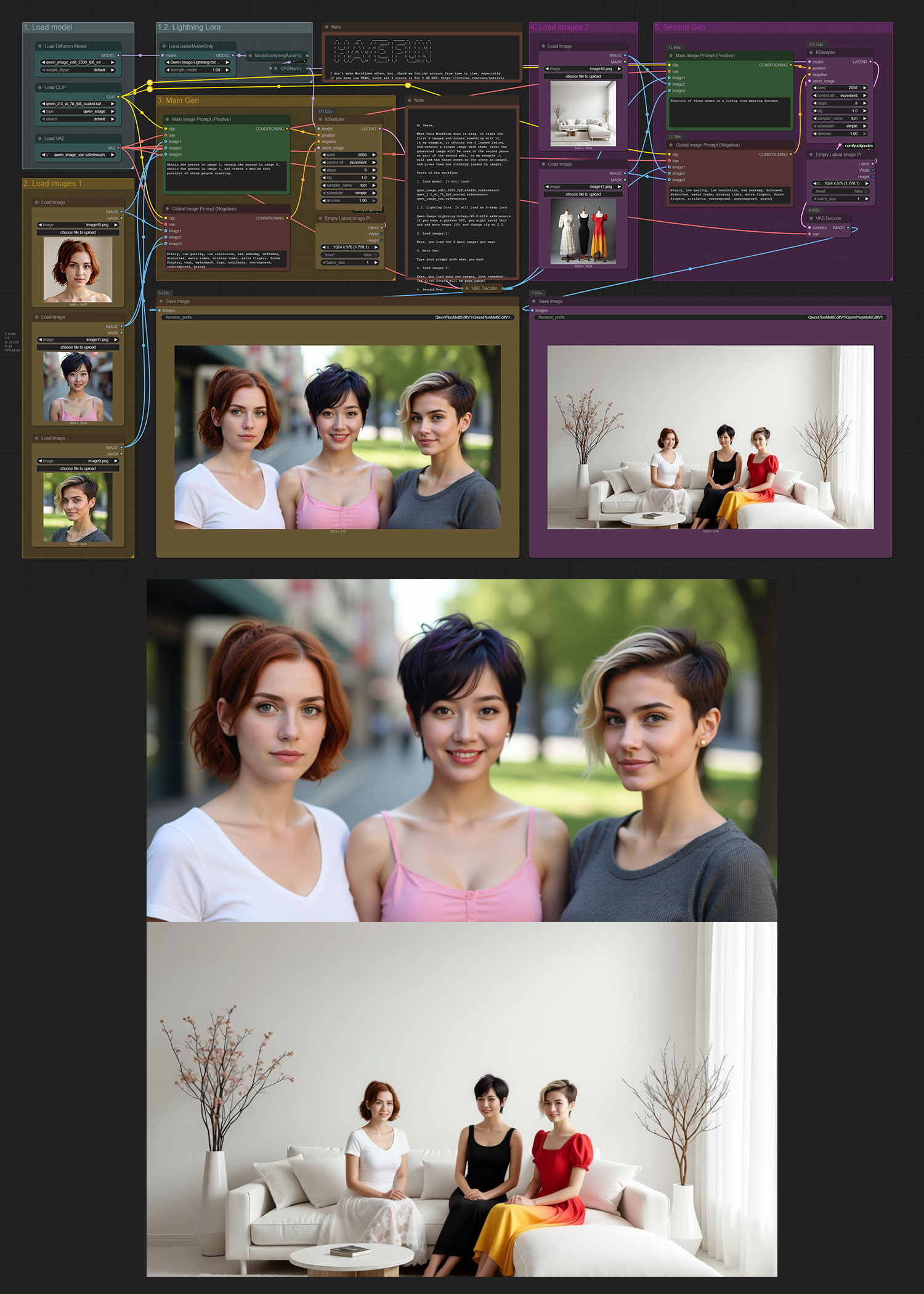
Hi there,
This is an updated version of the previous model. What it does is to generate one output using three inputs.
Please READ this entire note.
This workflow is meant to work with low VRAM (8GB) but you can change models and setting to make it work better. As a default, it runs a lightning LoRA and is set to 8 steps with cfg 1 (so quality is not the best); however, you can disable the LoRA, add more steps, and change cfg to 2+ for better quality. Note: With 8GB VRAM it will take a lot more time.
It's meant to use and create 1024x1024 px inputs and outputs, you may change that at will, but I haven't tested greater sizes. You will see the positive prompt node in green, negative in red, and there is a purple node named "Instructions" and you shouldn't edit it. Main image will be your main image, Image 2 your second, and Image 3 your third.
⚠️ GOOD PROMPTING IS ESSENTIAL:
You have to be careful in what you want, and specific, for example:
Replace the clothes from Picture 1 with the clothes in Picture 2, and replace the background for Picture 3Resources
Text Encoders
- qwen_2.5_vl_7b_fp8_scaled.safetensors
Diffusion Models
- qwen-image-edit-2511-Q4_K_M.gguf
VAE
Custom Nodes
LoRA
- Qwen-Image-Edit-2511-Lightning.safetensors
Anyway, if you can spare a couple of Buzz (on Civitai) I can create more stuff. Thanks! 🤗
________________________________________
This is from the previous version. I unpublished it because it's no longer updated.
Hi there,
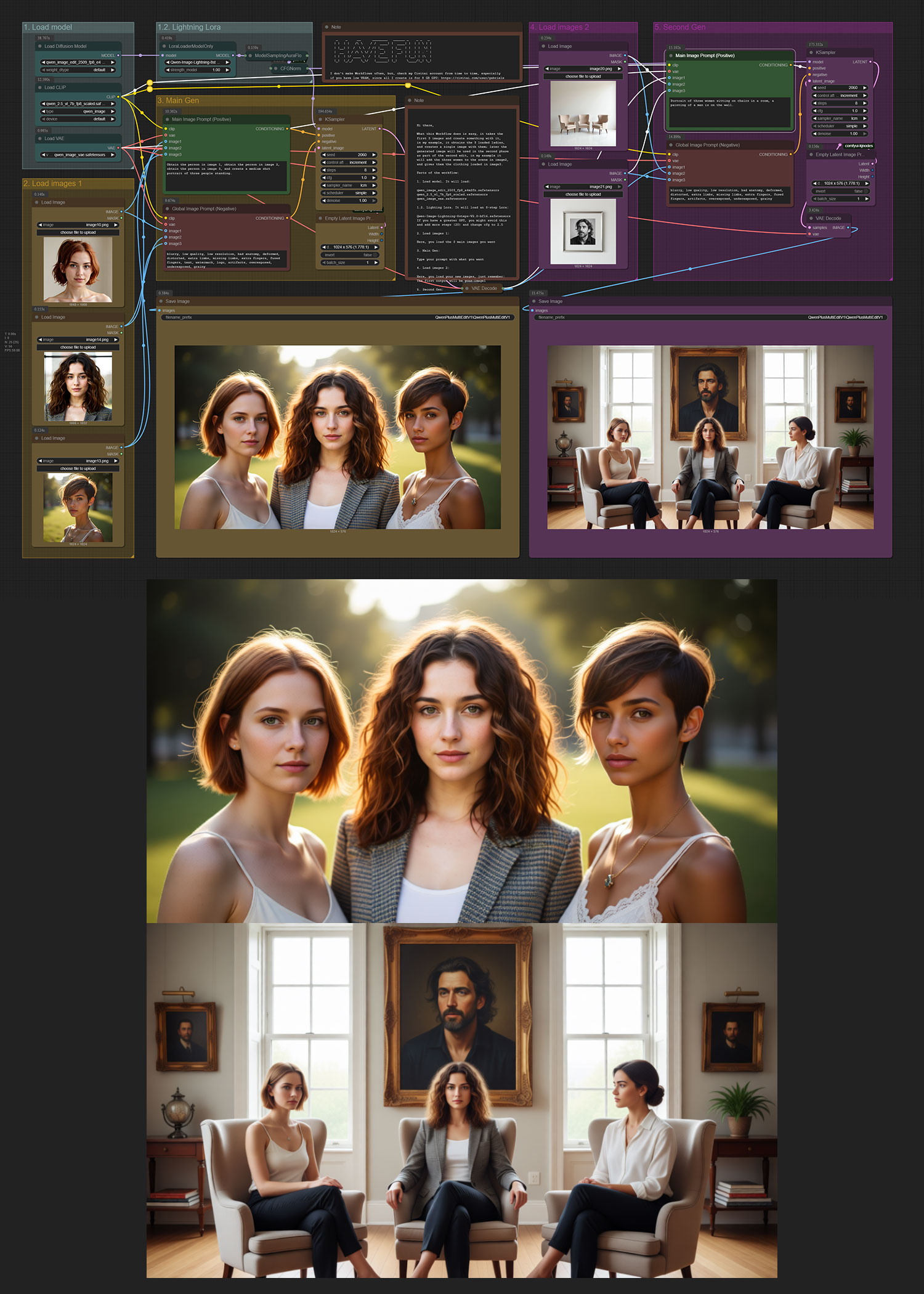
What this Workflow does is easy, it takes the first 3 images and create something with it, in my example, it obtains the 3 loaded ladies, and creates a single image with them; later the generated image will be used in the second phase as part of the second edit, in my example it will add the three women to the scene in image2, and gives them the clothing loaded in image3.
Parts of the workflow:
1- Load model. It will load:
qwen_image_edit_2509_fp8_e4m3fn.safetensors (update ComfyUI)
1.2- Lighting Lora. It will load an 8-step Lora:
If you have a greater GPU, you might avoid this and add more steps (20) and change cfg to 2.5. 2- Load images 1: Here, you load the 3 main images you want. 3- Main Gen:
Type your prompt with what you want. 4- Load images 2: Here, you load your new images, just remember: The first output will be your image1. 5- Second Gen: Type the prompt of what you want it to do with the first output and the other two new images. The file you'll download has the JSON file as well as a PNG, so you can use either in ComfyUI
Description
FAQ
Comments (6)
The results make the faces look nothing like the original reference. It can be fixed with the existing QwenEdit Consistence LoRA?
The issue is the lightning lora and low steps. If you disable the 8 steps LoRA, add more steps (like, 20 or 30) and the cfg to 2.5, it should have more consistency, give it a try.
@gabrielx oh interesting thanks for that detail, that wasn't clear from anything i've read. will try and let you know.
@gabrielx can confirm, such a good tip! thanks for that!
If you use ComfyUI-Zluda and/or AMD try it. I am using ComfyUI-Zluda with an AMD RX 7090 XTX also using Qwen-Image-Lightning-4steps-V1.0.safetensors.
Trying to get controlnet open pose to work - so far it works but the resulting pose makes the subject smaller than the original, how to fix?